
Guide viewers to take action without leaving your video.
Video calls to action (CTAs) let you guide viewers to take the next step without leaving the video. You can pause the video to collect leads, highlight an offer, encourage clicks, or prompt social sharing at exactly the right moment.
Use video CTAs to:
- Capture leads while attention is high
- Direct viewers to offers, pages, or next steps
- Highlight important messages without interrupting the entire experience
- Encourage interaction at key moments in the video
Because CTAs appear at specific timestamps, you can align each prompt with what’s being said or shown on screen.
How to access video call to action settings
Video CTAs are configured inside the video setup wizard.
To get there:
- Go to Media center > Videos in your Kartra account.
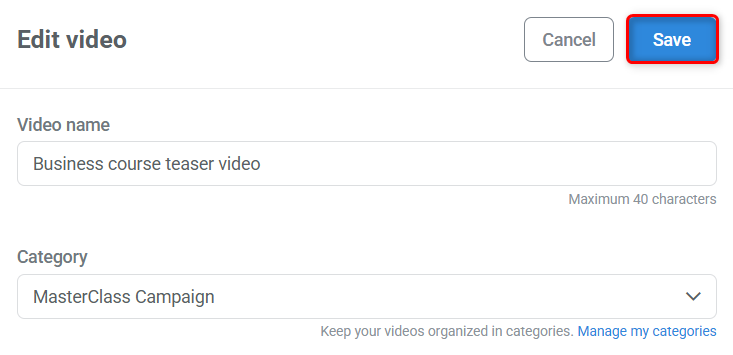
- Edit your video and click Save on the initial window to open the video wizard.
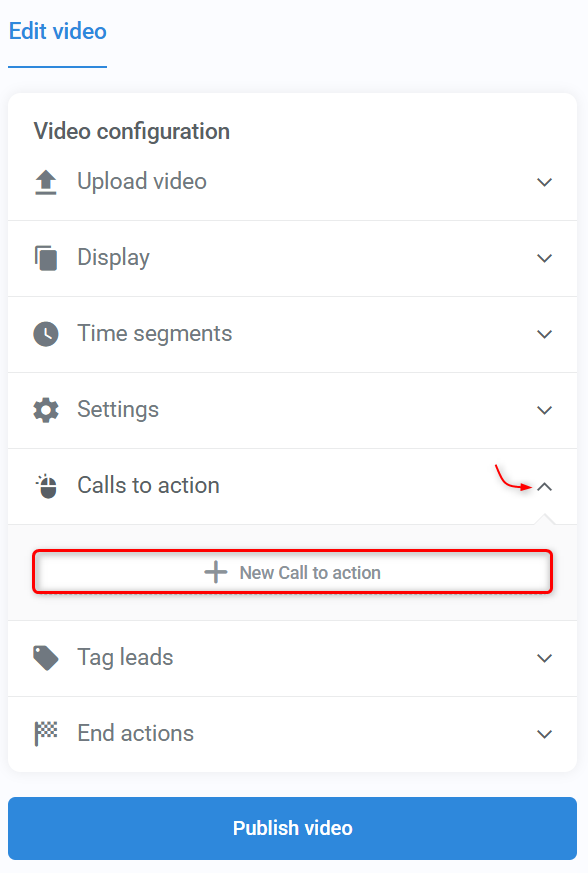
- Expand Calls to action and click + New Call to action.
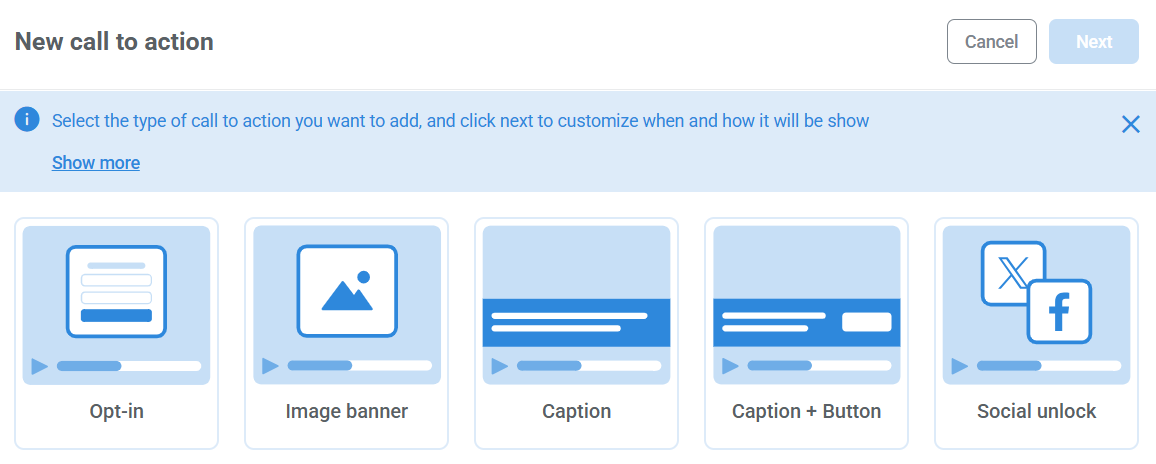
- Choose the type of CTA you want and click Next to configure its settings.
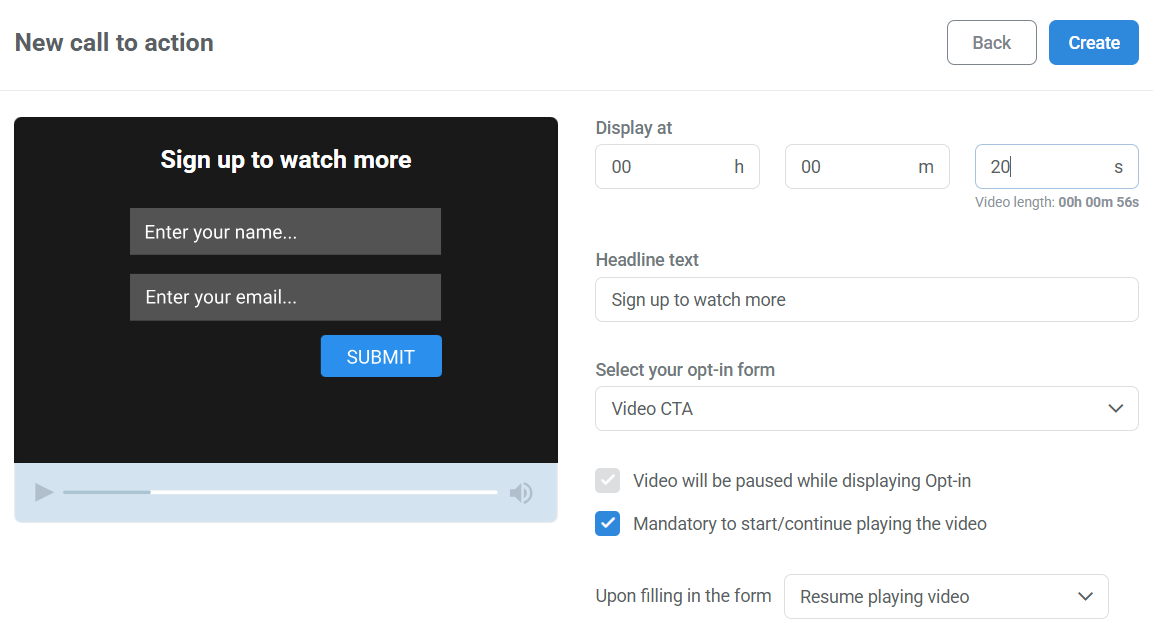
- Click Create to save your CTA, then Publish video.
Types of video calls to action
Kartra offers several types of video CTAs, each designed for a different goal. You can add multiple CTAs to the same video, but using them intentionally helps avoid overwhelming viewers.
Opt-in
An opt-in CTA pauses the video and displays a form directly inside the video player.
Best used to:
- Collect email addresses during educational or value-driven content
- Gate part of a video behind an opt-in
- Capture leads at a moment of high interest
How it works: The video pauses at a specific timestamp and shows an opt-in form.
Settings include:
- Headline text
- Timestamp (hours, minutes, seconds)
- The existing form to display
- Whether the form is mandatory to continue watching
- What happens after submission (redirect to the form’s success page or resume the video)
Image banner
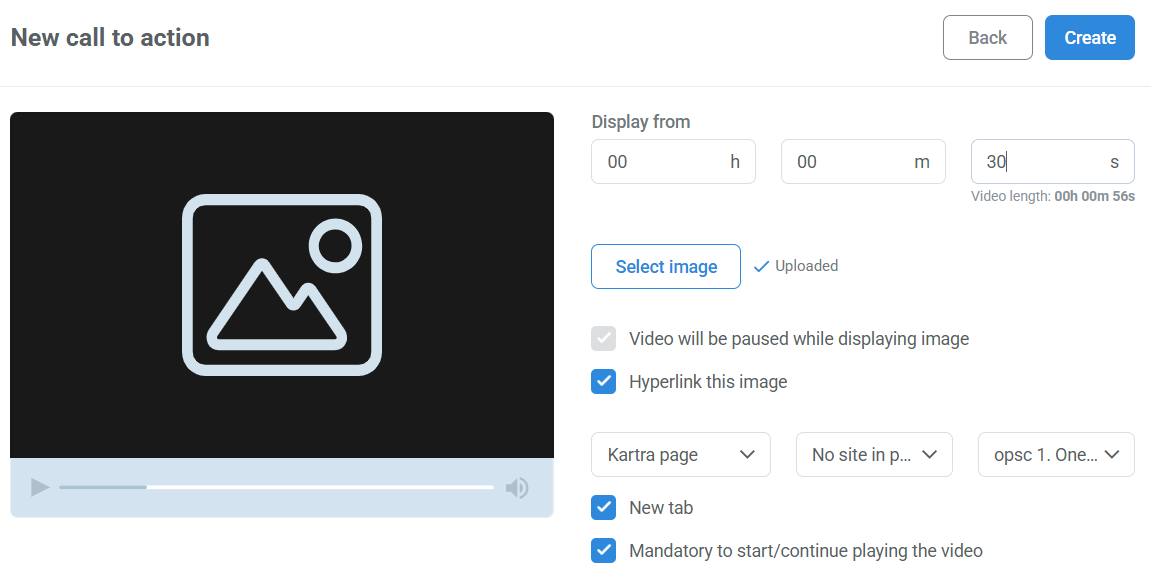
An image banner CTA pauses the video and displays a clickable image overlay.
Best used to:
- Visually promote an offer or announcement
- Direct viewers to a specific page
- Reinforce a message that benefits from visual emphasis
How it works: The video pauses and displays an image over the player.
Settings include:
- Timestamp (hours, minutes, seconds)
- Image selection (from your library or direct upload)
- Optional hyperlink and new-tab behavior
- Whether clicking the image is required to continue watching
Caption
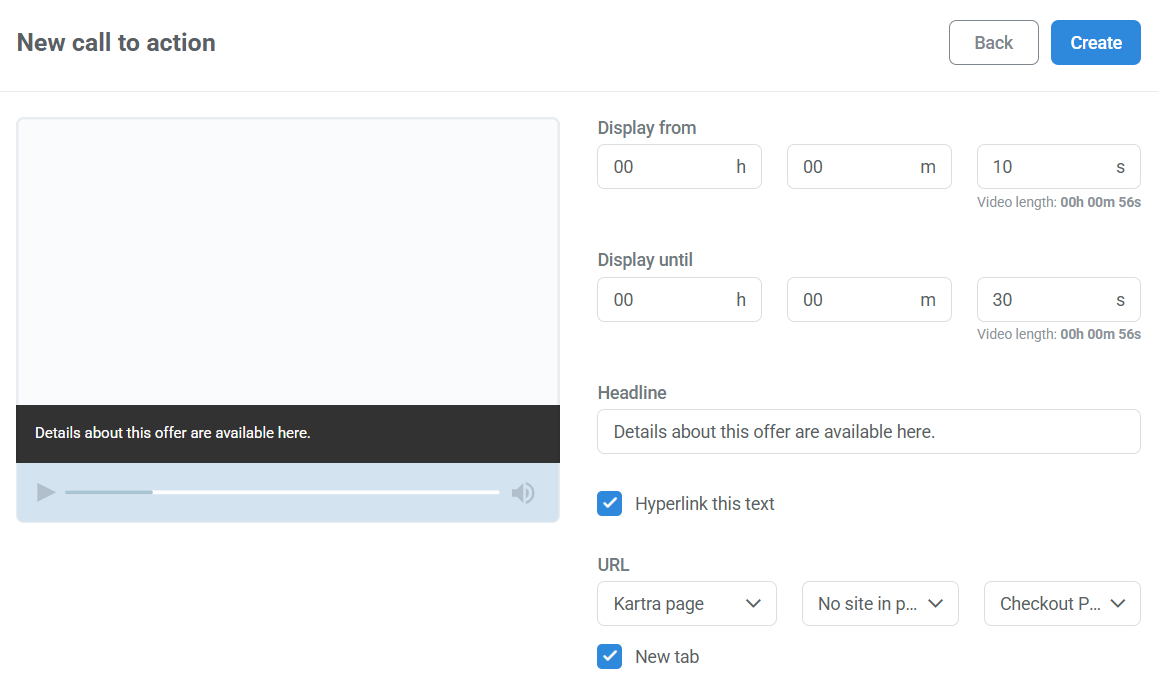
A caption CTA displays a text banner at the bottom of the video while it continues playing.
Best used to:
- Share reminders or supporting information
- Add context without interrupting playback
- Gently link to related content
How it works: The caption appears for a set time range and does not pause the video.
Settings include:
- Display start and end timestamps
- Caption text
- Optional hyperlink and new-tab option
This CTA is always optional, viewer interaction cannot be required.
Caption + Button
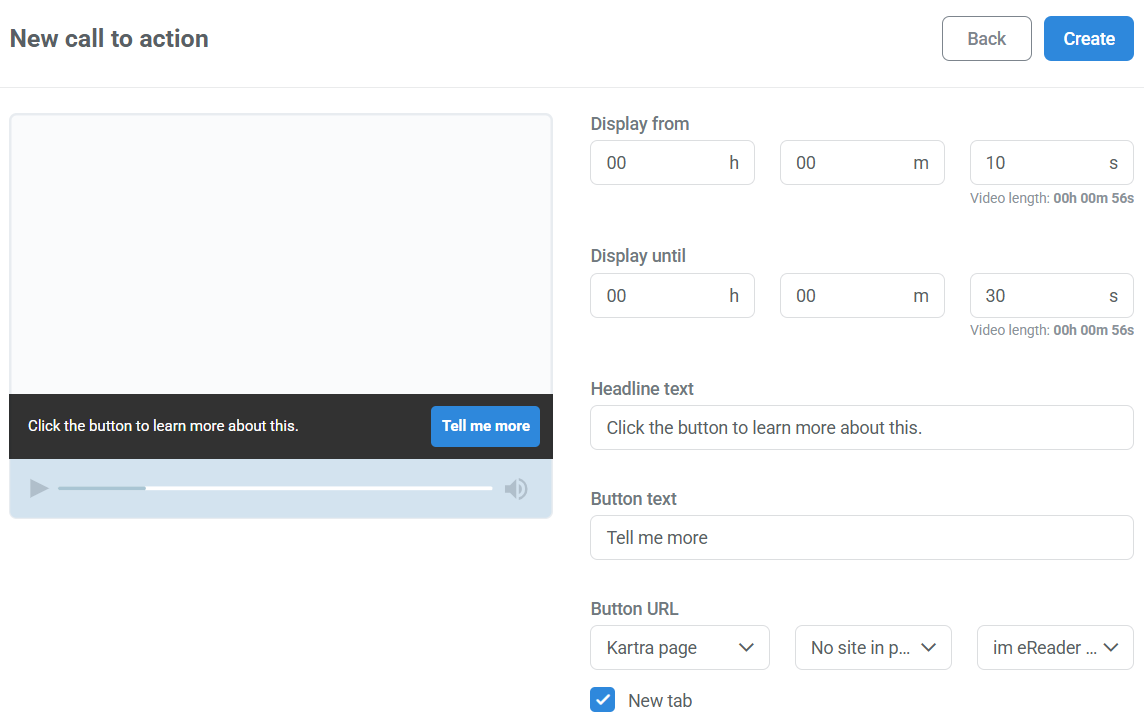
This CTA works like a standard caption but adds a clickable button.
Best used to:
- Encourage action without stopping the video
- Highlight a clear next step with stronger visibility
- Separate the message (caption) from the action (button)
How it works: The caption remains visible while the video plays, and the button handles the click action.
Settings include:
- Caption text
- Button text
- Button link (the link is attached to the button, not the caption)
Social unlock
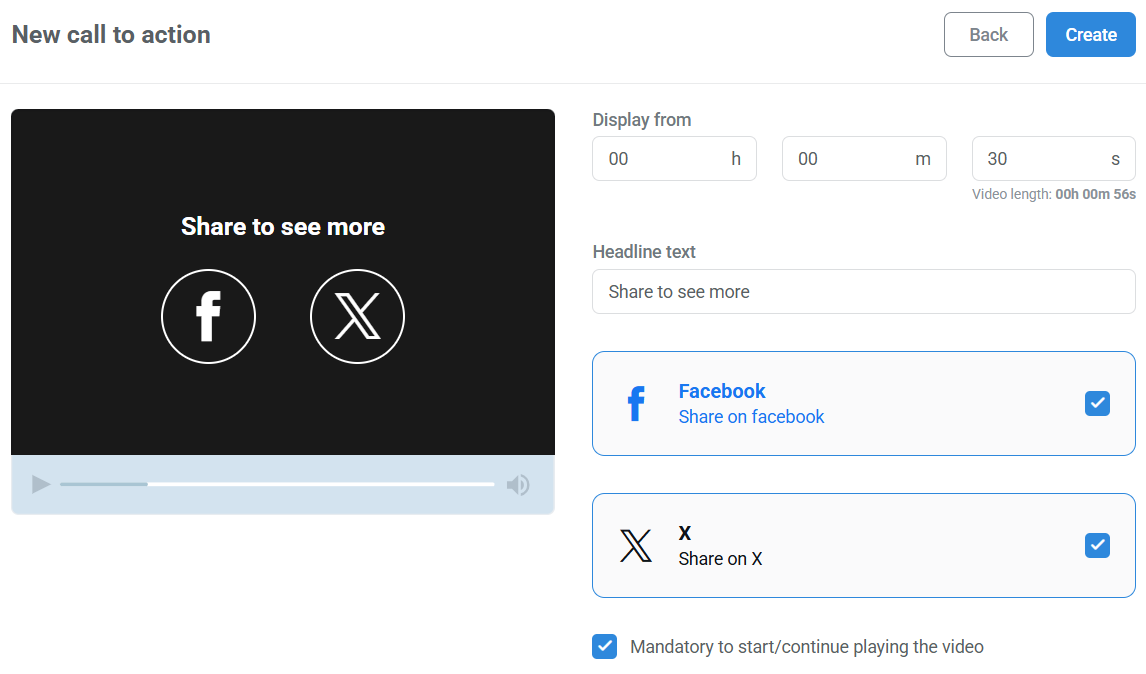
A social unlock CTA pauses the video and prompts viewers to share before continuing.
Best used to:
- Encourage social sharing for promotional content
- Increase visibility for key videos
- Reward viewers with continued access after sharing
How it works: The video pauses at a set timestamp and displays a social sharing prompt.
Settings include:
- Timestamp (hours, minutes, seconds)
- Headline text
- Social platform selection (Facebook or X)
- Optional requirement to share before continuing
Pro tip
While you can add multiple CTAs to a single video, using too many can distract viewers. Focus on moments that naturally align with what you’re asking them to do.