
Learn how to add and configure questions in a Kartra survey, including the required settings needed to save responses correctly.
This guide focuses on the survey builder, where you design questions, choose layouts, and define how responses are stored.
Accessing the survey builder
To add or edit questions in a survey:
- Go to Contacts > Surveys
- Edit an existing survey or create a new one
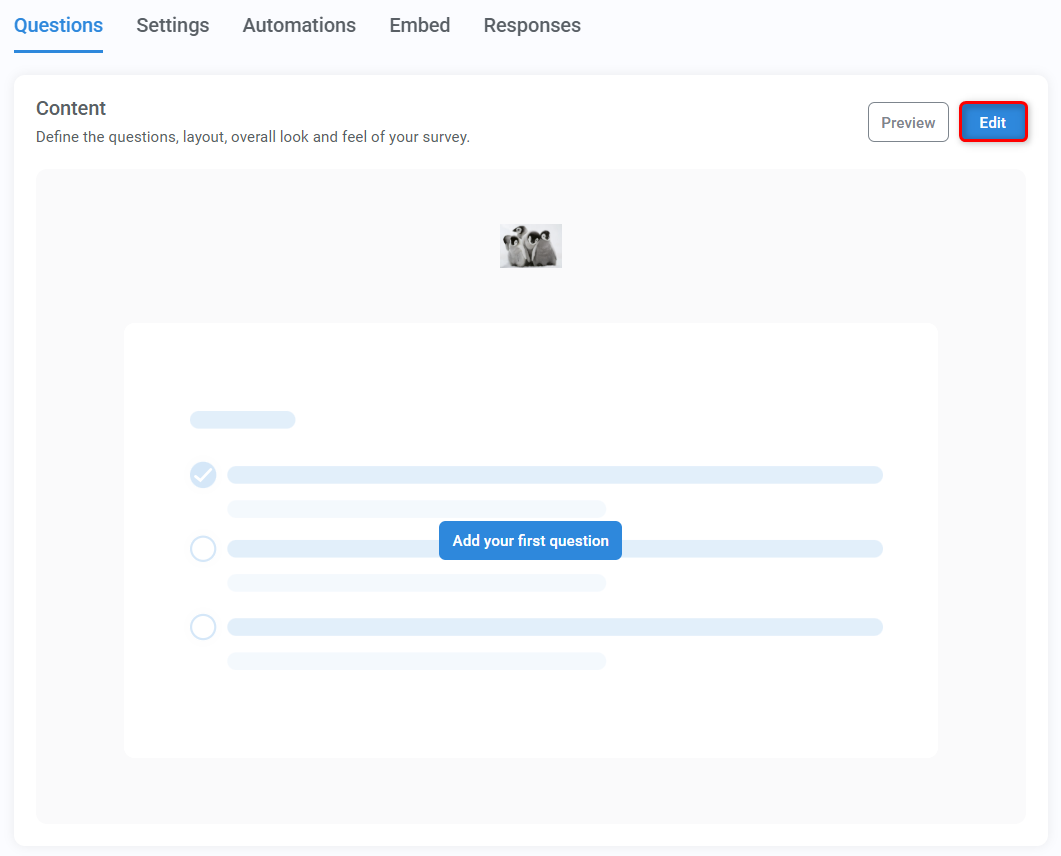
- In the Questions tab, edit the Content module
This opens the survey builder, where all questions are created and managed.
Survey builder overview
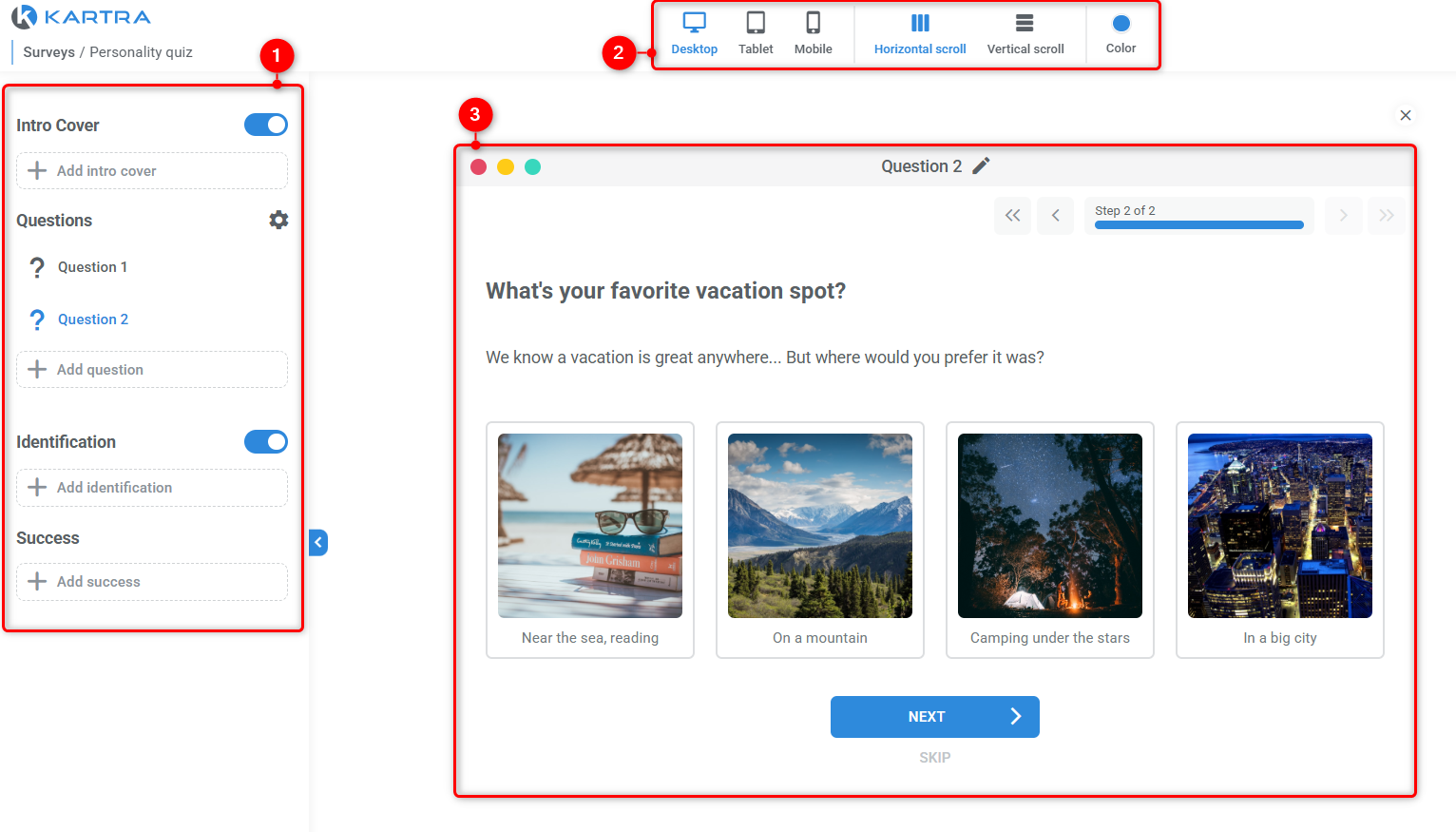
The survey builder is divided into three main areas:
- Sidebar (#1)
- Top menu (#2)
- Questions canvas (#3)
Sidebar settings
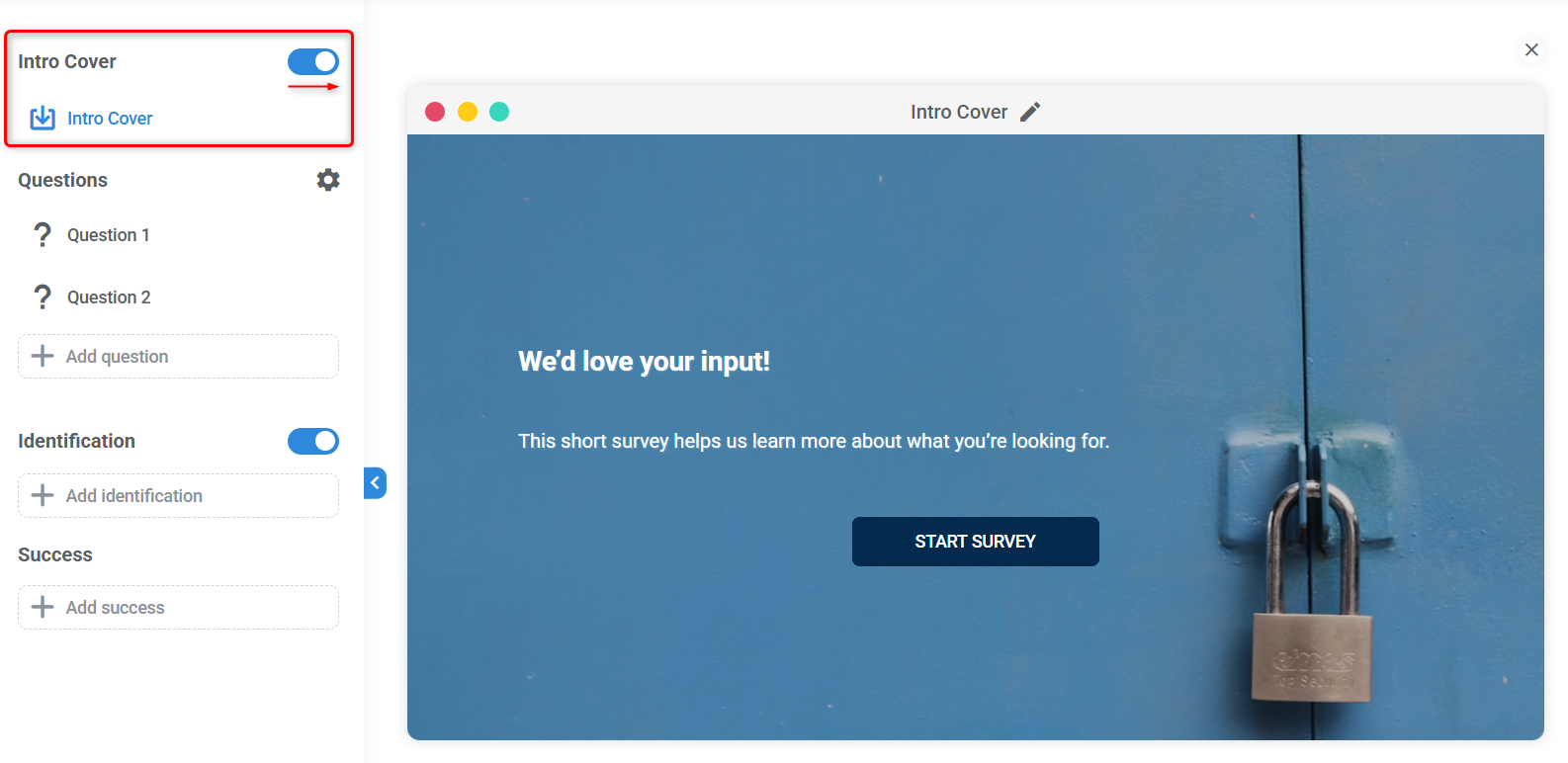
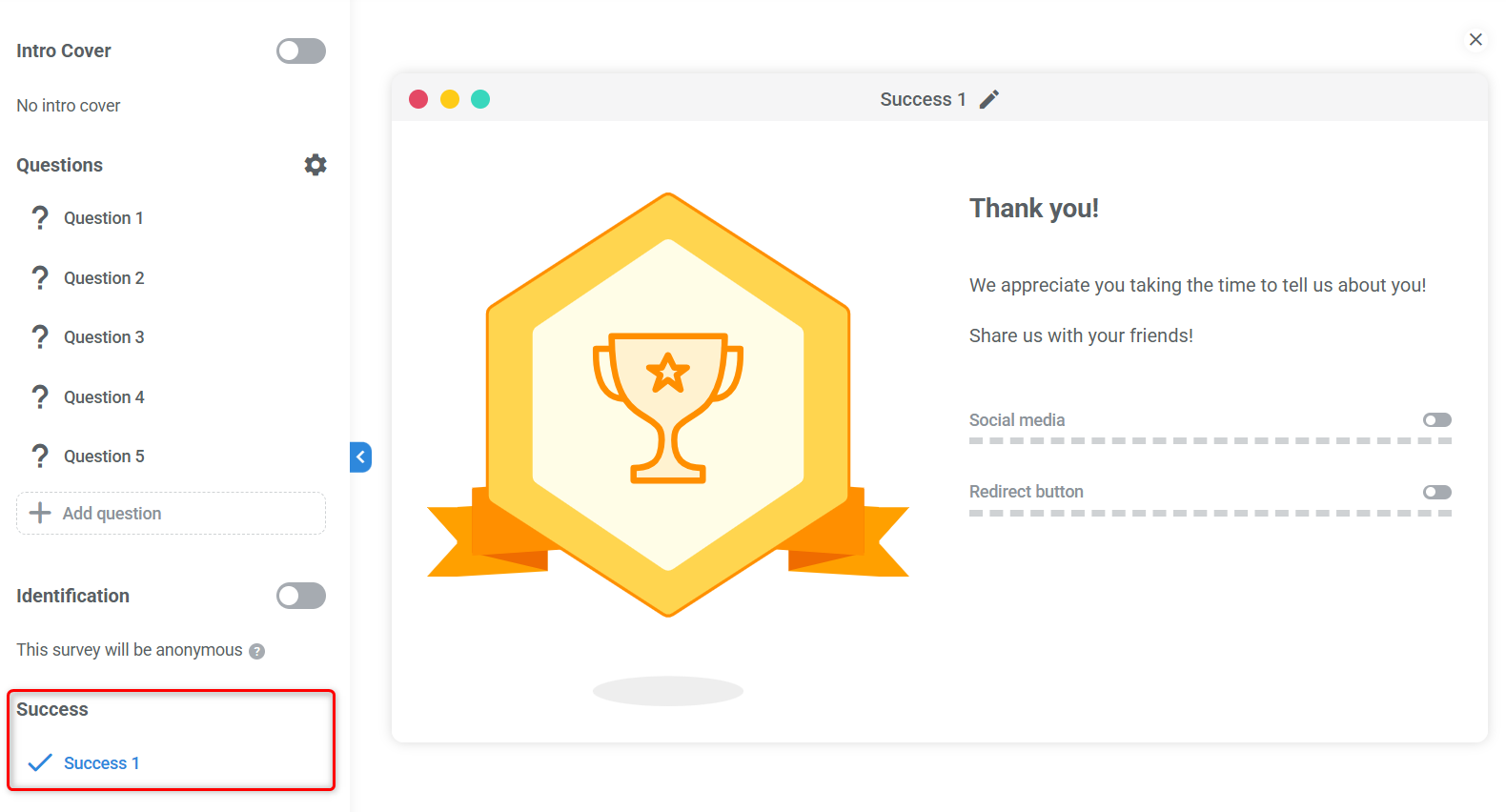
Intro cover (optional)
You can add an introductory slide that appears before the first question.
Identification (optional)
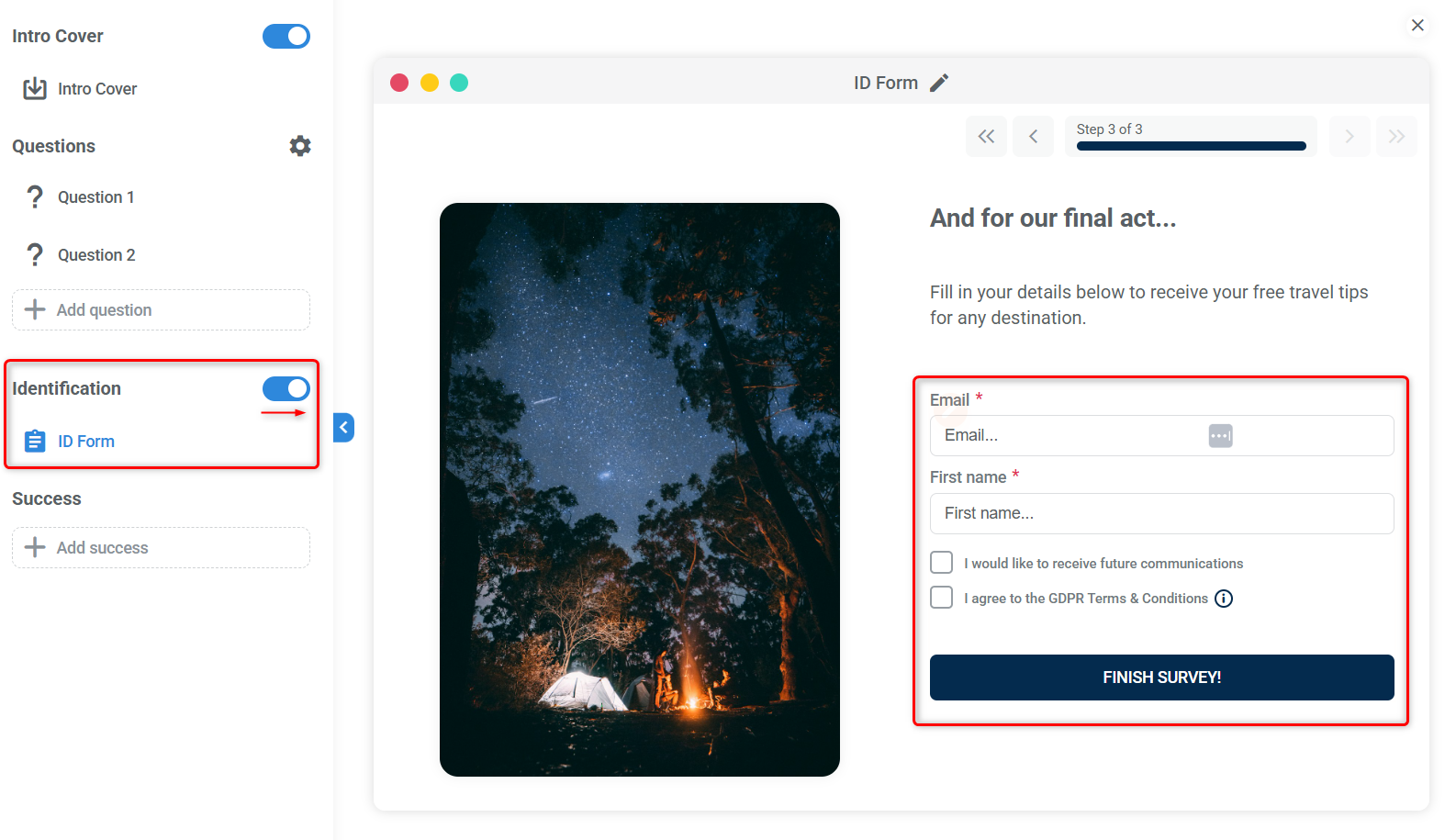
This setting lets you choose whether:
- Respondents must identify themselves, or
- The survey can be completed anonymously
If identification is disabled:
- Responses will not reflect in your contacts’ profiles or be associated with contacts in any way, even if they have a profile in your account.
- Automations based on responding to the survey, specific answers, or scores will not trigger.
If any of these are important to you, make sure to enable identification.
Success
Define what happens after the survey is completed:
- Show a success message on a final slide, or
- Redirect respondents to a success page
Top menu options
From the top menu, you can:
- Preview how the survey looks on desktop, tablet, and mobile
- Choose horizontal layout (one question per slide) or vertical layout (all questions on one page)
- Select an accent color for buttons and option selectors

Adding a question
To add a new question:
- Click + Add question
- Choose a layout for the question and select a question type
- Configure answer options
- Adjust question settings
Question layouts
Questions can use the following layouts:
- Text only
- Text and image (horizontal layout)
- Text and image (vertical layout)
- Text and video
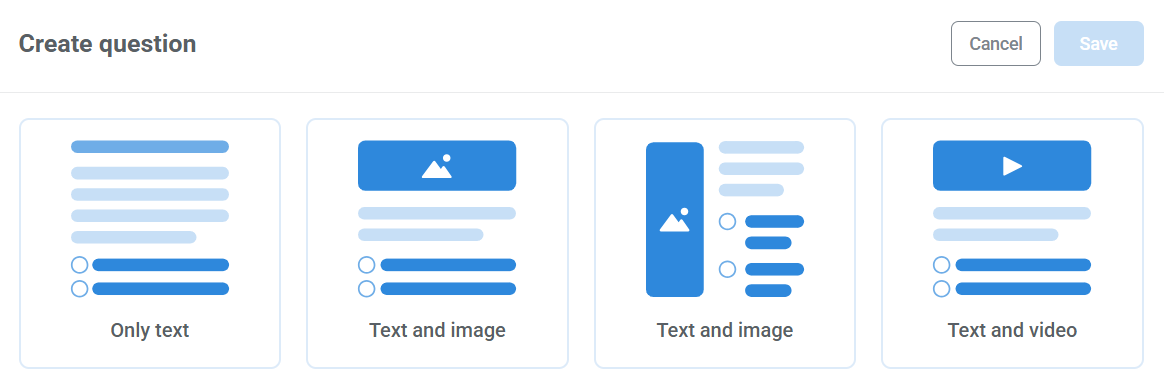
The layout controls how content is displayed, not how answers work.
Question types
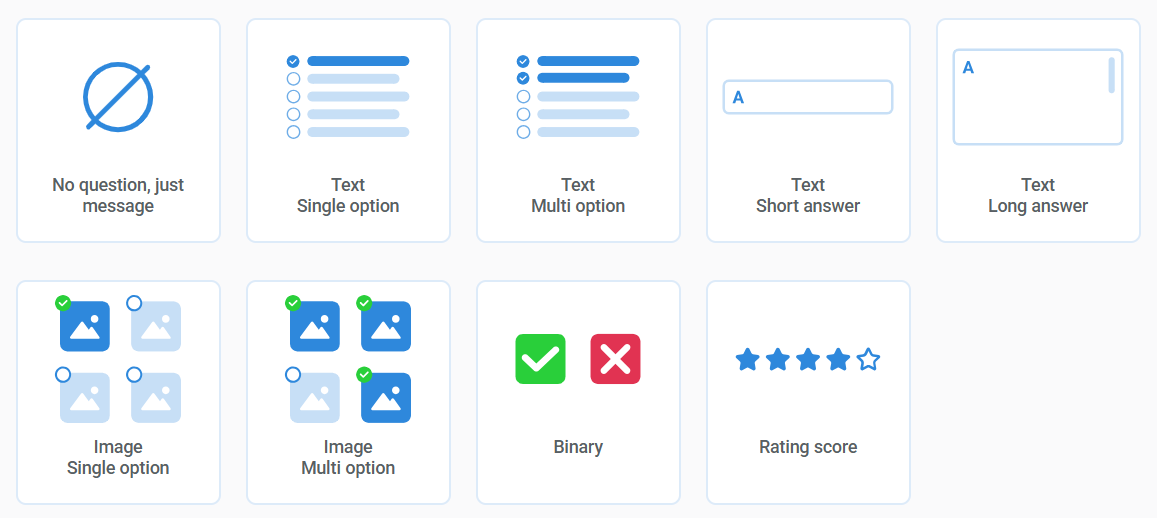
After choosing a layout, select the type of response you expect.
Good to know
- Single and multi-option responses start with four options by default. You can add or remove options as needed
- Binary questions always include two options. The icons and text can be customized.
- Rating questions support 5 or 10 stars, with custom labels at each end.
Question settings (important)
Each question includes additional settings that control how responses are handled.
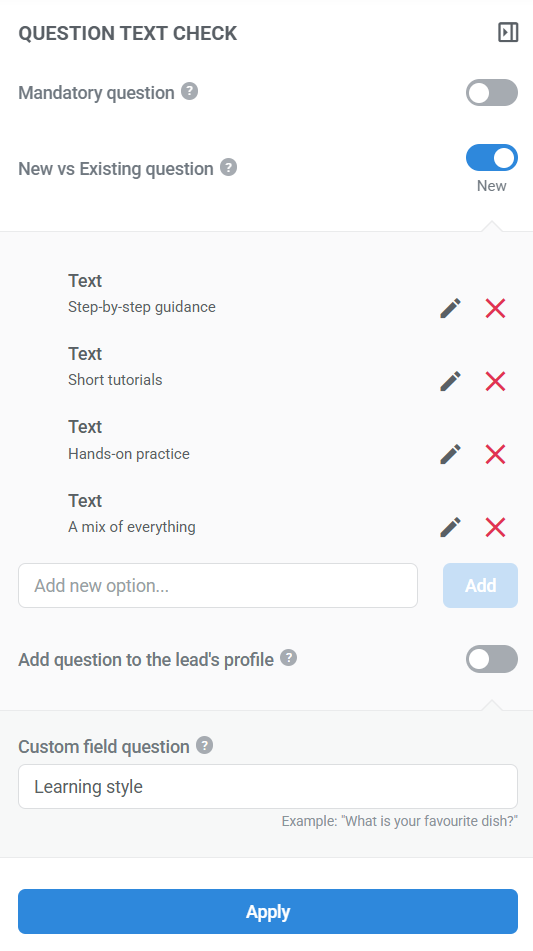
- Mandatory: Enable this option to require respondents to answer the question before moving on.
- Add question to the lead’s profile: When enabled, the respondent’s answer is saved to their lead profile as a custom field. If you enable this option, you must define a field identifier.
- Important: For this feature to work, you must also enable identification for your survey.
- Internal question name: Required for saving question settings. The internal question name only shows up in survey analytics for your reference
Reordering and editing questions
You can:
- Drag and drop questions to change their order
- Edit existing questions at any time
- Remove questions you no longer need
- Changes are reflected immediately in the survey preview.