
Learn how to guide respondents through different question paths based on their answers using branched surveys in Kartra.
By default, survey questions are shown in order, from top to bottom. With branched paths enabled, you can:
- Send respondents to different questions based on their selected answer
- Skip questions that aren’t relevant to them
- End the survey early and send respondents directly to the success message
This helps you create shorter, more personalized surveys.
This feature is only available for traditional surveys. If your survey is a scored quiz or personality quiz, the survey flow will always be linear.
When to use branched paths
Branched paths work best for:
- Feedback surveys where follow-up depends on an earlier answer
- Market research surveys with multiple audience types
- Surveys that adapt based on interests, experience level, or preferences
If all respondents should answer the same questions, a linear survey is usually the better choice.
Pro tip
If you’re using branched paths, it’s best to use horizontal scroll.

With vertical scroll, all questions appear on the same page, which means respondents may see questions even if they’re meant to be skipped by a branch.
How branched paths work
When branched paths are enabled, Kartra shows a list of single-choice questions in the branching panel. These are the only question types where you can decide what happens based on one specific selected answer.
Questions that allow multiple answers are not shown in the branching panel, because more than one option can be selected at the same time.
For each eligible question:
- Each answer option can be mapped to a specific next question
- The next question does not have to be the one that follows in order
- Different answers can send respondents down different paths
This allows you to ask follow-up questions that are more relevant to each choice.
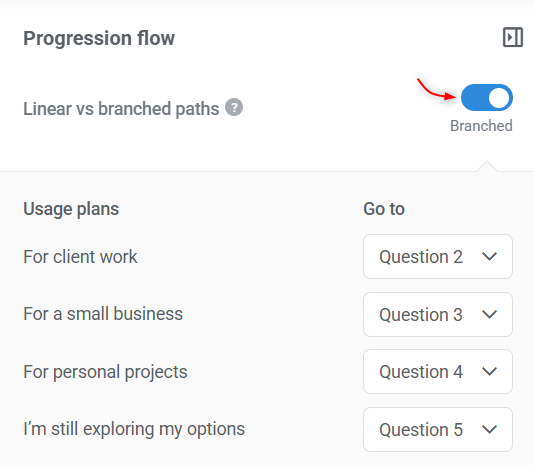
This means:
- You can configure branching from single-choice questions.
- You can route respondents toany question type.
- Important: If a branch sends a respondent to a question that can’t be branched from (such as an open text or rating question), the survey resumes its normal flow.
- The next question shown will be the one that follows in order in the Questions panel.
Ending a branch early
If a specific path doesn’t require additional questions, you can send respondents directly to the success message or page.
This is useful when:
- You’ve already collected all relevant information
- A certain answer doesn’t require further context
Where to configure branched paths
Branched paths are configured inside the survey builder.
To access them:
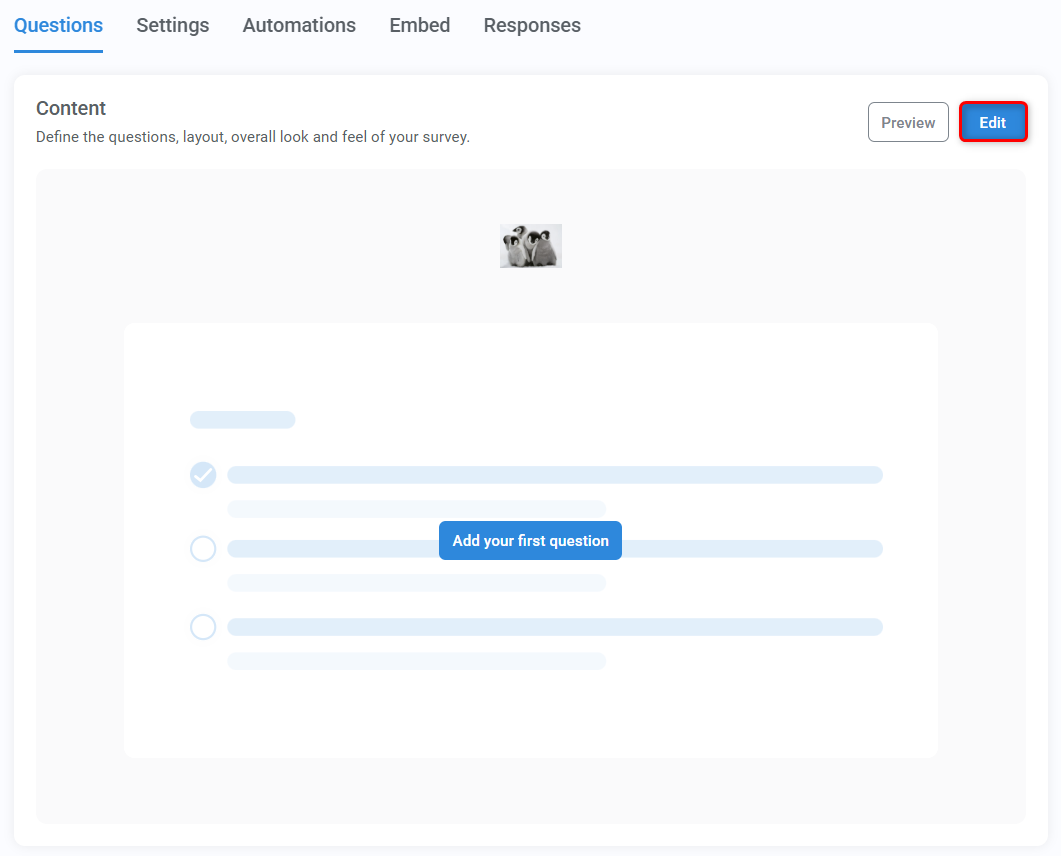
- Open your survey and go to the Questions tab
- Edit the Content module to open the survey builder
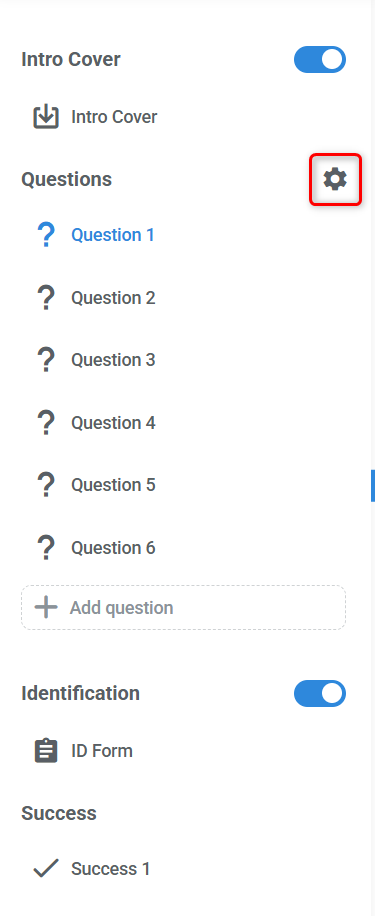
- In the sidebar, locate the Questions section
- Click the cogwheel icon next to the Questions heading to open the progression flow panel.
Progression flow
In the configuration panel, you can choose whether to display a progress bar. On top of that, traditional surveys let you choose between linear flow (default) and branched paths.
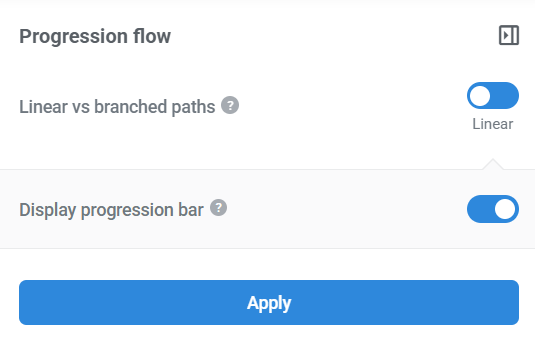
To enable and configure branched paths, switch the first toggle to branched.
Skipped questions
Questions that are skipped due to branching:
- Are not shown to the respondent
- Do not affect survey completion
- Still remain part of the survey structure
This means one survey can support multiple paths without duplicating questions.
If you choose branched paths and not all questions are visible to every respondent, consider disabling the progress bar to avoid confusion.