
This guide walks you through building a membership in Kartra.
The sections below highlight the main stages involved in building a membership, so you can understand what each part is for and focus on what matters most for your setup.
Create a new membership
Creating the membership is the starting point that defines the structure you’ll work with and lets you begin building and configuring it.
Go to Memberships > All memberships and click + Membership.
Enter a name for your membership, then choose:
- A sidebar orientation
- A layout design template
Set your header and accent colors, then click Create to open the membership configuration wizard.
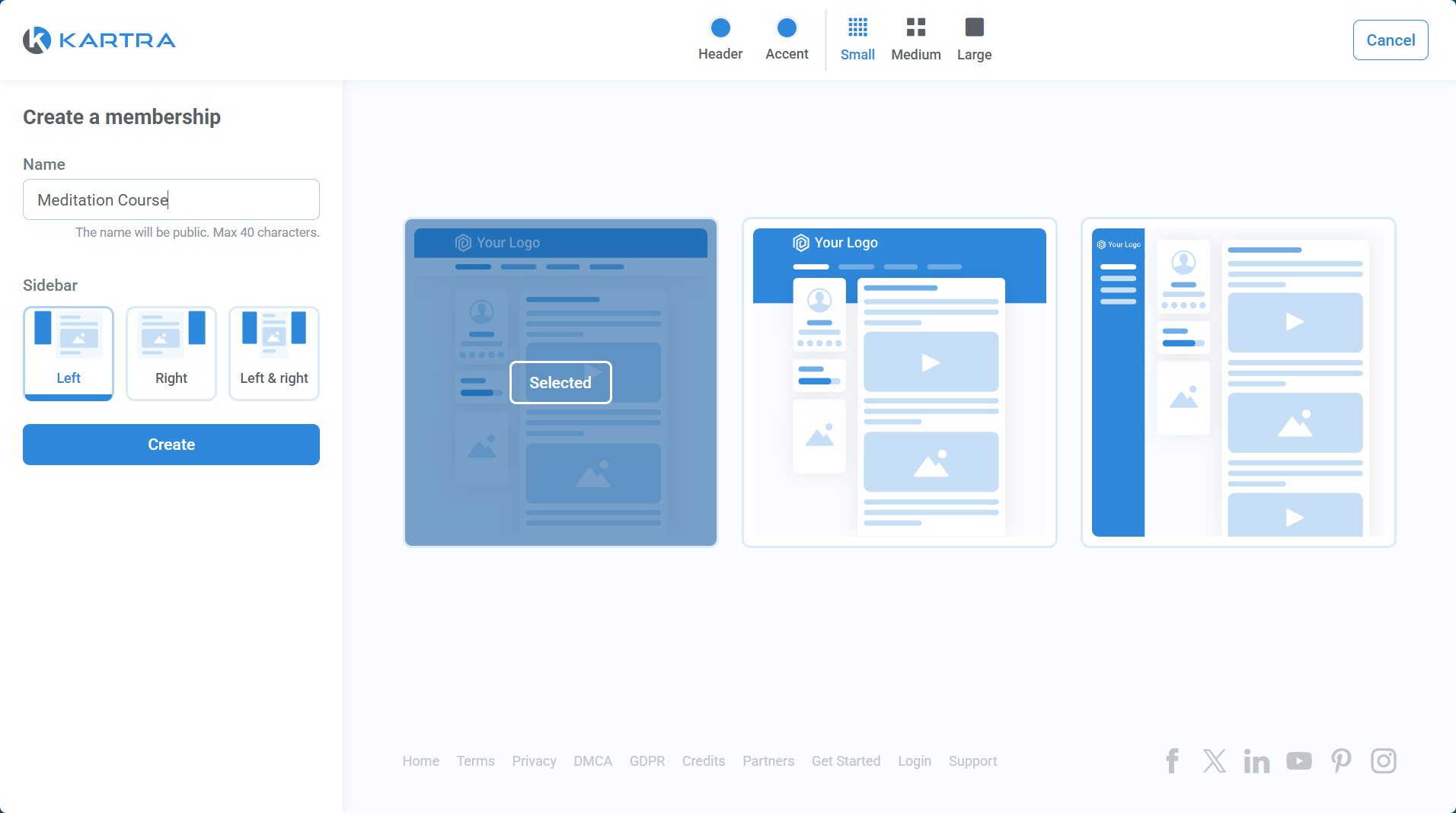
These choices set the initial layout and appearance of the membership. You can adjust them later as you continue building.
Configure your settings
The membership configuration wizard includes several tabs that control how your membership behaves overall. Some of these settings affect communication and automation, while others depend on content being in place.
You don’t need to complete everything here before building your membership. You can revisit these settings once your content structure is set.

Here’s what you can do in each tab:
- Settings: Define how your membership appears on its login page, including:
- Description
- Image
- A link where visitors can purchase or sign up for access
- Password protection
- Contents: Access the membership builder to add and organize content
- Comments: enable/disable comment boxes per post
- Access:
- Progress: Guide progress and pacing in your membership
- Helpdesk: Link a helpdesk to your membership, whether Kartra-hosted or external
- Welcome: Customize the welcome email sent when access is granted
- Automations: Configure basic actions that run when members gain access
You’ll return to these settings after building your content. The next section covers where and how you add content.
Build your membership content
The membership builder is where you design the structure and pages your members will see, and where you add your actual content.
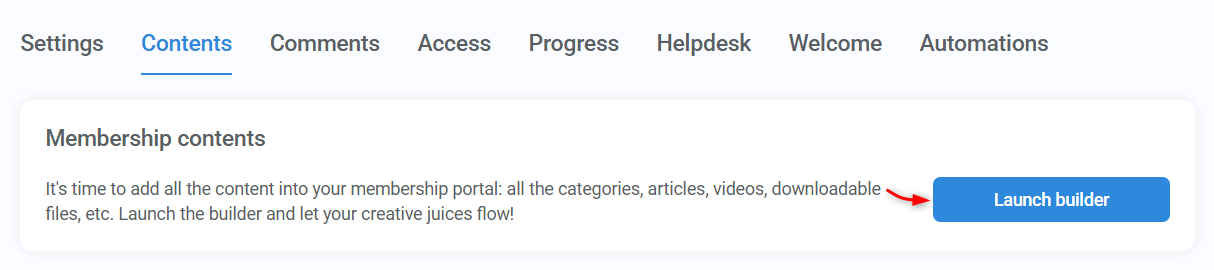
To access the builder, edit your membership, go to Contents, and click Launch builder.
What you can do inside the builder
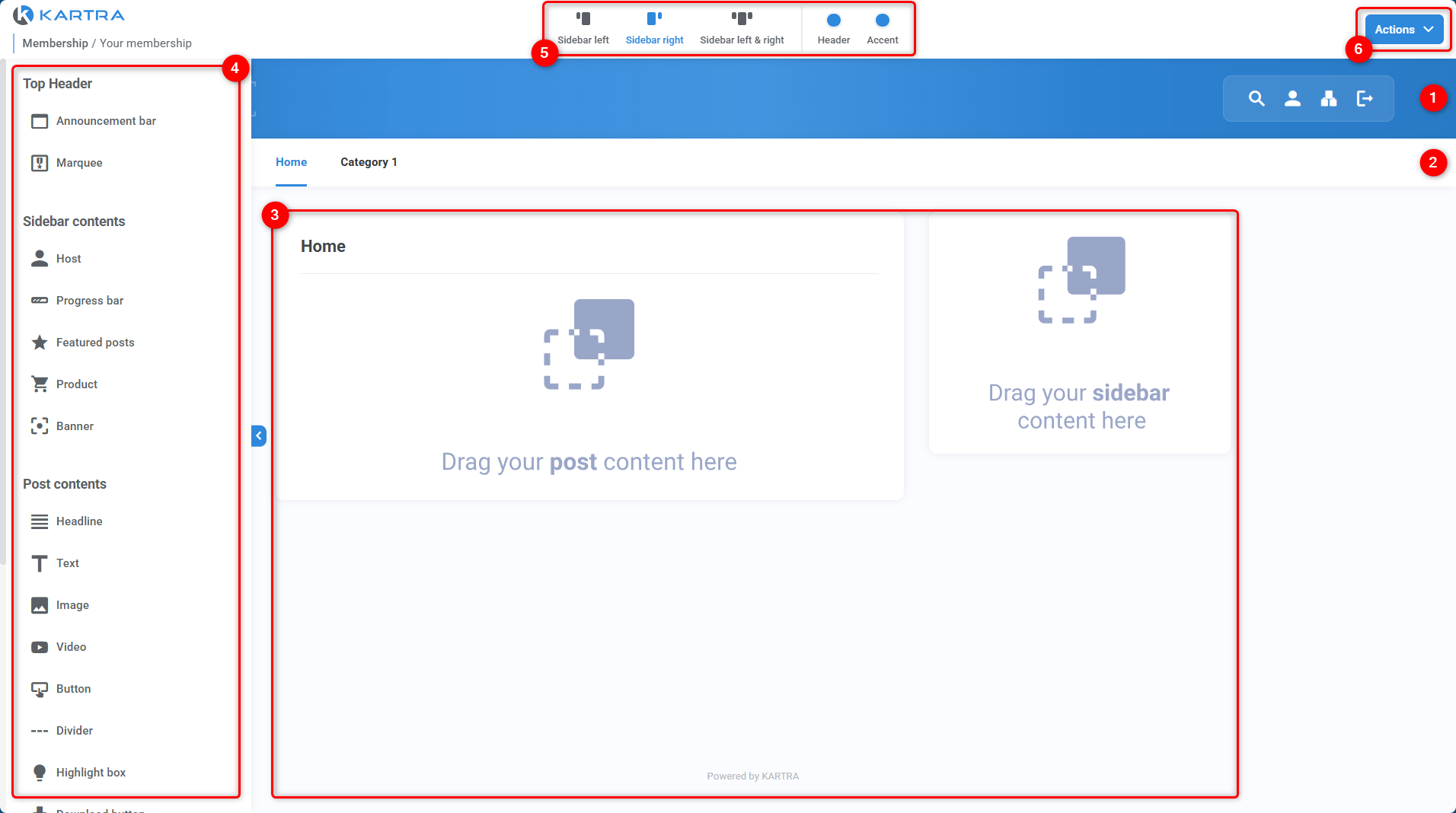
Use the following areas:
- Header: Upload a logo and edit the text shown by header icons
- Navigation bar: Create categories and subcategories to organize content into logical sections
- Canvas: Drop content blocks for posts or sidebar
- Side menu: Access all components available for drag and drop
- Top menu: Adjust the sidebar orientation and update header and accent colors
- Actions button: Preview changes, save, or exit the builder
Publish
When you’re ready to make the membership available, review the default login page. From there, you can optionally edit the page URL or link a custom login page.
Click Publish in the top-right corner of the wizard.

Once published, your membership is live and ready to grant access.