
Use countdown timers on your pages to display a time limit and guide visitors toward taking action before a deadline.
Countdown timers are most useful when timing matters and visitors need a clear visual reminder that something is about to end.
Use countdowns for:
- Public launches or promotions
- Evergreen offers
- Automated follow-ups
- Access changes
Key details:
- Countdown timers can be fully fixed, or triggered to start when someone:
- Lands on a page
- Subscribes to a sequence
- Joins a list
- Is assigned a tag
- When a countdown reaches zero, it can redirect visitors to another page or URL.
Countdown configuration options
Setting up a countdown, means choosing:
- What starts the countdown
- When the countdown ends
- What happens after the countdown ends
Fixed date and time (same deadline for everyone)
If you want your countdown to start and end at the same time for all visitors, you can use a Fixed date and time timer.
With this option, the timer runs toward one specific date and time on the calendar. This option is best when:
- You’re running a public launch or promotion
- Everyone should see the same deadline
Personalized countdown triggers
If you’d like the countdown to start based on individual actions, you can choose from the following event-based triggers:
- Based on landing date
Starts when a visitor lands on the page. Useful for:- Evergreen funnels
- Automated offers
- Based on sequence subscription
Begins when someone enters a sequence. Commonly used when:- A page is shared through an email in a sequence
- Timing needs to align between the sequence contents and the actual offer
- Based on list subscription
Starts when someone is added to a list. This works well when:- List subscription marks the beginning of an offer window
- Timing should not depend on the page visit itself
- Based on tag subscription
Starts when a specific tag is applied to a contact.
This trigger is especially helpful in more advanced automations, where tags are used to mark milestones or conditions.
When the countdown ends
Once a trigger and timing type are selected from the Countdown ending dropdown, you define how long the countdown runs before it reaches zero.
Fixed
Ends in X days, at a specific time of day. Example: 5 days after sequence subscription, at 9:15 PM
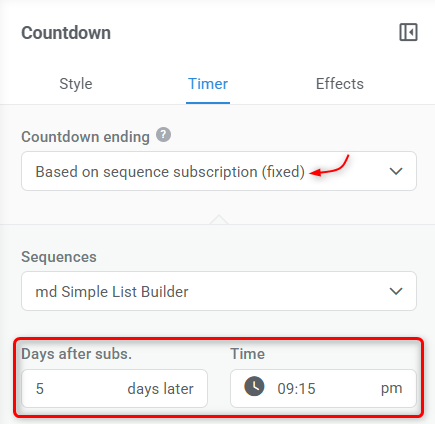
This option is useful when:
- You want a clear end-of-day deadline
- Timing should feel structured and predictable
Dynamic
Ends after an exact amount of time (X days, hours, minutes, and seconds) measured from the trigger moment. Example: 5 days, 3 hours, 25 minutes, and 34 seconds after sequence subscription
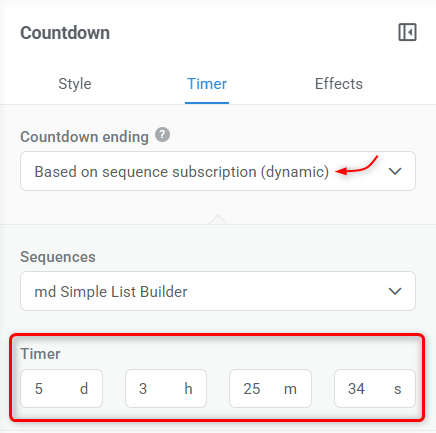
This option is useful when:
- Each visitor should get the same amount of time
- You want precision down to the second
What happens after
All countdown timers can be set to redirect visitors when the timer reaches zero.
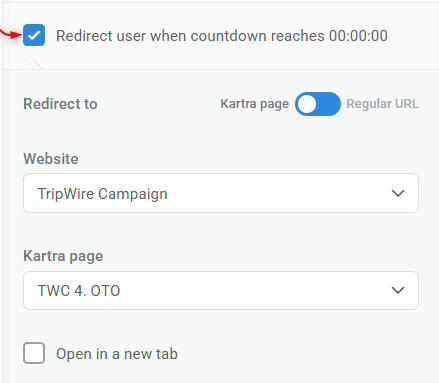
You can redirect to:
- Another Kartra page
- A regular URL (such as a tracking link or an external page)
Pro tip
In most cases, opening the redirect in the same tab (not a new one) is recommended so visitors don’t remain on a page showing an expired countdown.
How to add a countdown to a page
To add a countdown timer, start by opening the page you want to edit in the page builder.
- Open the Components panel and select Countdowns.
- Choose a countdown template to drag and drop it onto your page.
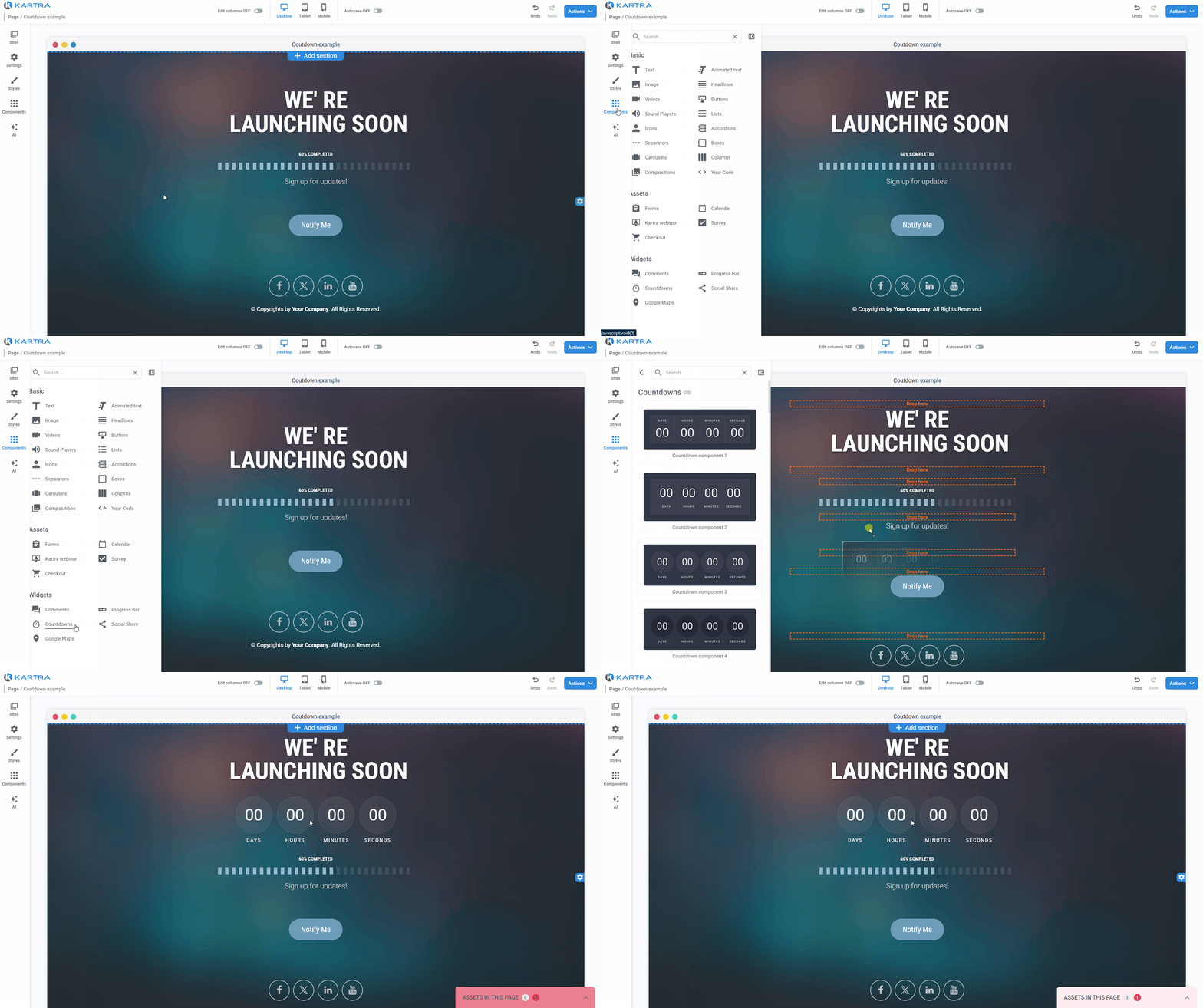
- Edit your countdown to configure its settings and click Apply to save.
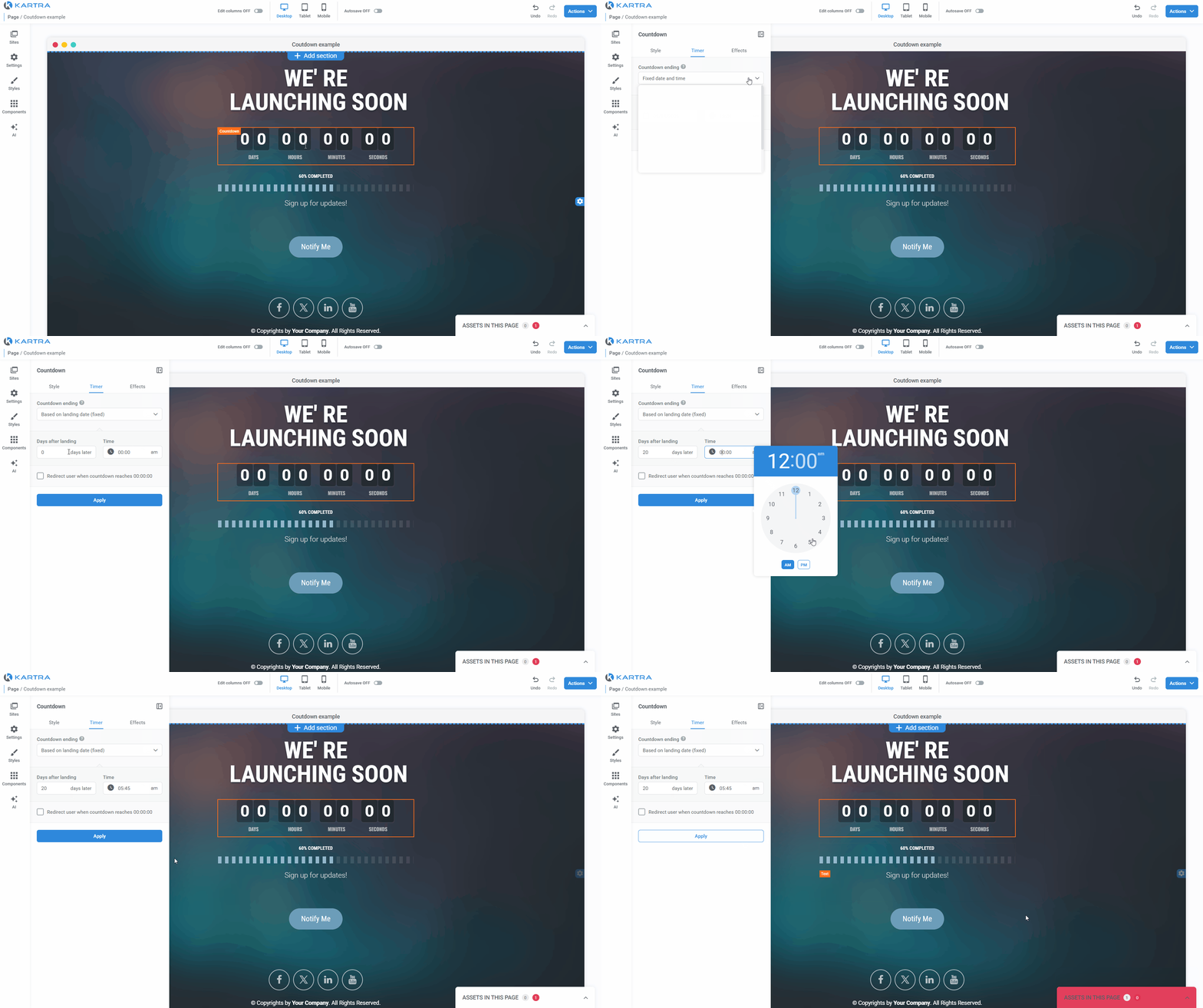
To make the countdown visible on the live page, publish the page.