
Learn how to create a booking calendar in Kartra so people can schedule appointments, classes, or events with you.
Kartra Calendars let you offer free or paid bookings, manage availability, and automate confirmations and reminders.
Before you begin:
- Every calendar uses a model (Consultant, Gym, Live event, or Recurrent) that controls how scheduling works.
You’ll choose the model during the first step. If you’re unsure which one to use, learn more about calendar models.
- Calendars in Kartra use classes to define what people can book.
A class represents a specific appointment or session type, an event, such as a coaching call, class, or workshop. Each new calendar includes one class by default. You must configure at least one class for your calendar to work.
Step 1: Create a new calendar
To get started:
- Go to Events > Calendars in your Kartra account and click + Calendar.
- Enter a public name for your calendar and choose a calendar type (model).
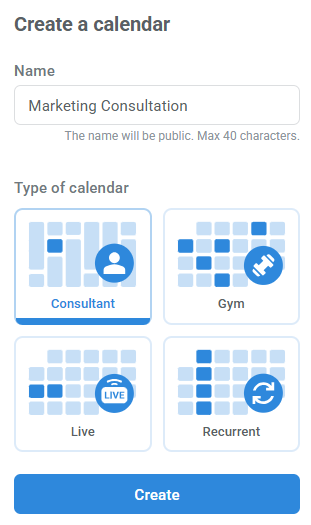
- Click Create.
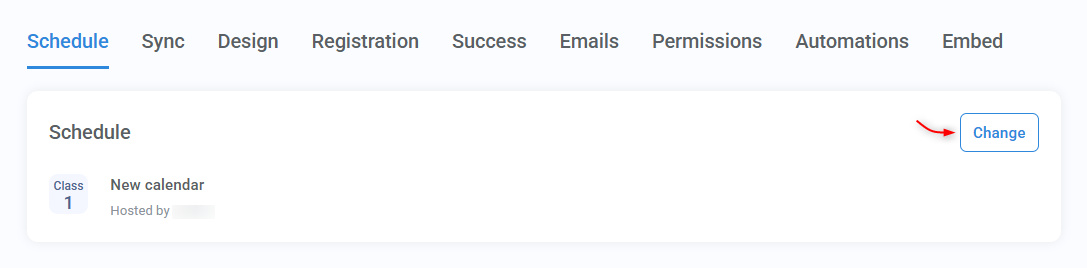
Your calendar is created and you can see its setup wizard.
Step 2: Set up your schedule
To configure a class:
- Open the Schedule module in the first tab.
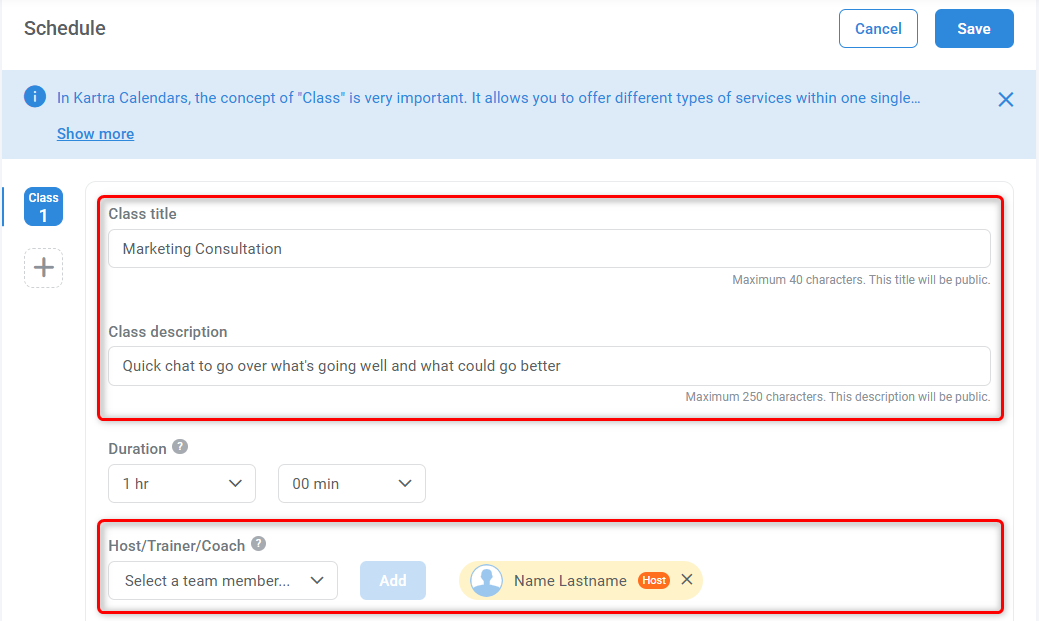
- Enter a title, description, and select the host (coach, trainer, or consultant).
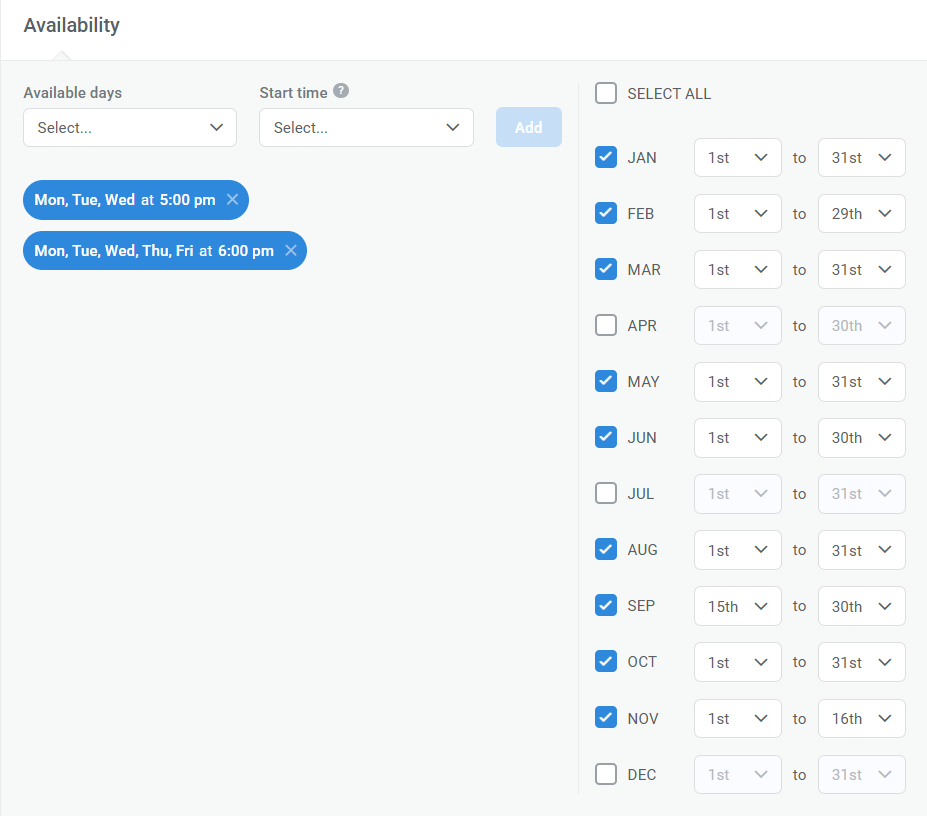
- Define when the class is available and its duration.
- Important: Each new calendar includes one class by default. You must configure at least one class for your calendar to work. Learn more about the differences between calendar models.
- Important: Each new calendar includes one class by default. You must configure at least one class for your calendar to work. Learn more about the differences between calendar models.
- Save the class.
If needed, you can add multiple classes to the same calendar. Learn more about scheduling options.
Step 3: Review the remaining settings
Once your schedule is in place, you can review the other tabs in the wizard.
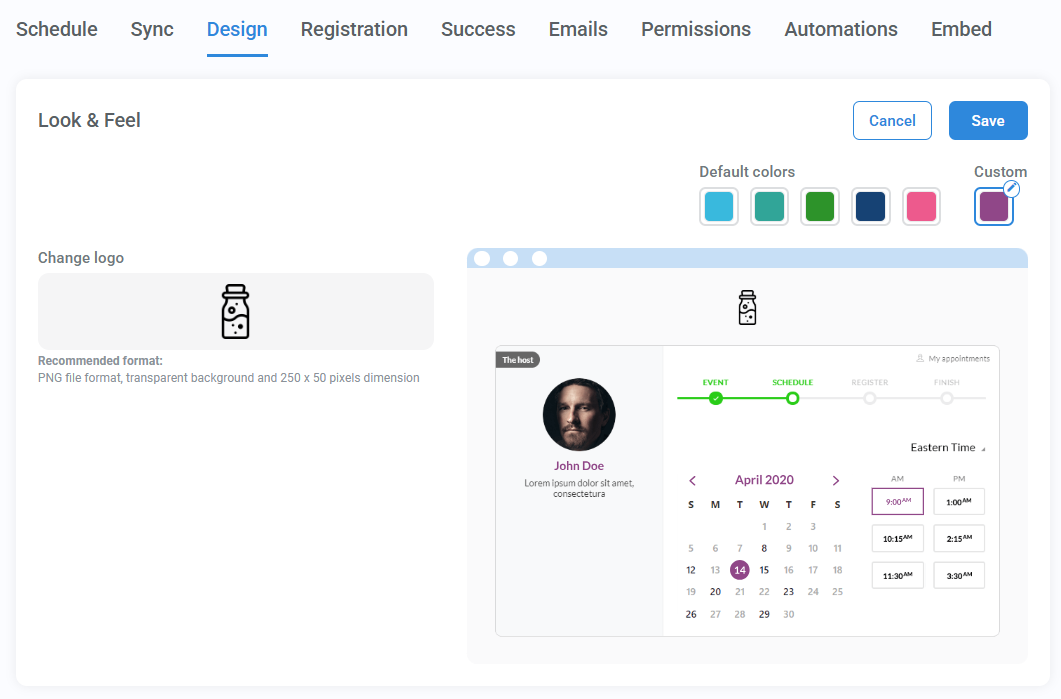
- Design: Customize the look of the booking page
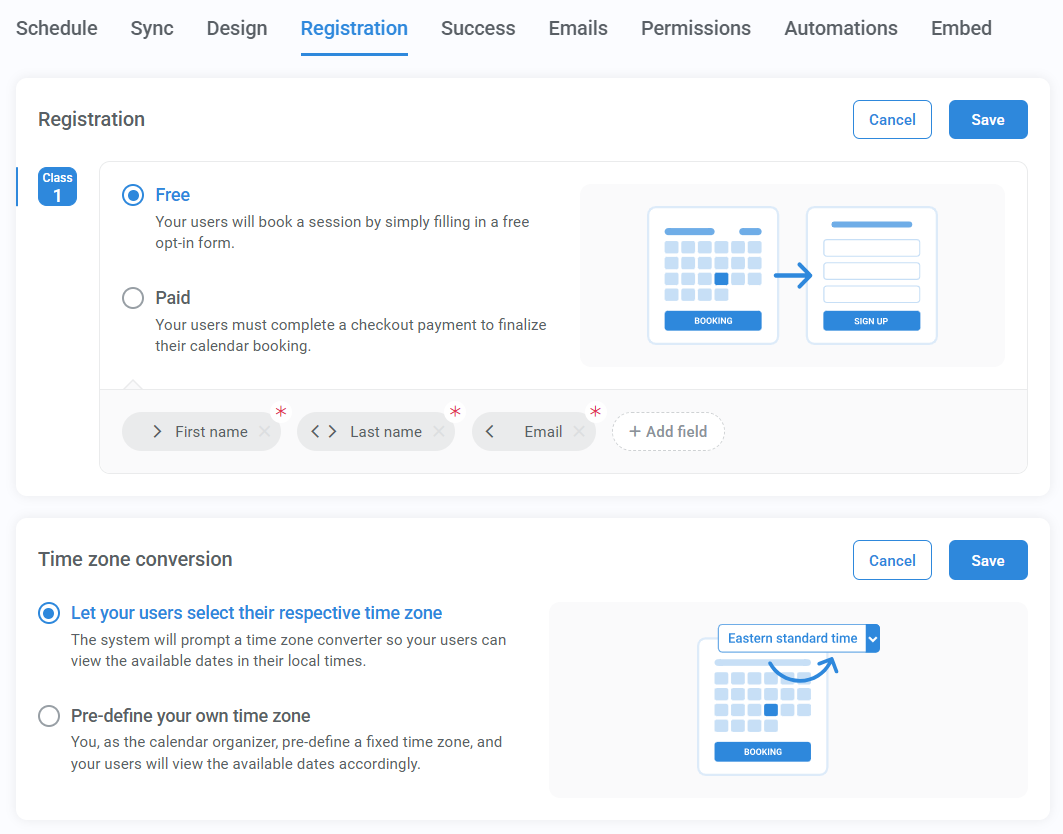
- Registration: Choose whether booking is free or paid
- Important: Paid bookings require a connected product. It’s best to use a product created specifically for this calendar.
- Important: Paid bookings require a connected product. It’s best to use a product created specifically for this calendar.
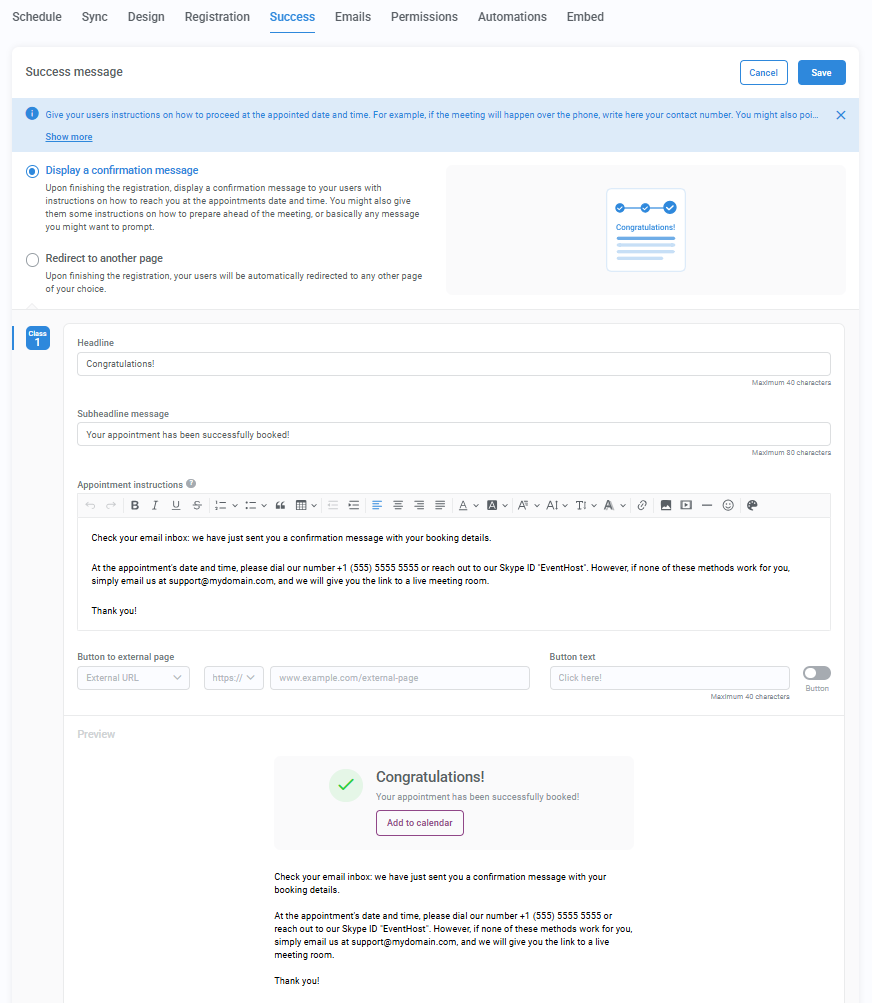
- Success: Set the message or page shown after booking
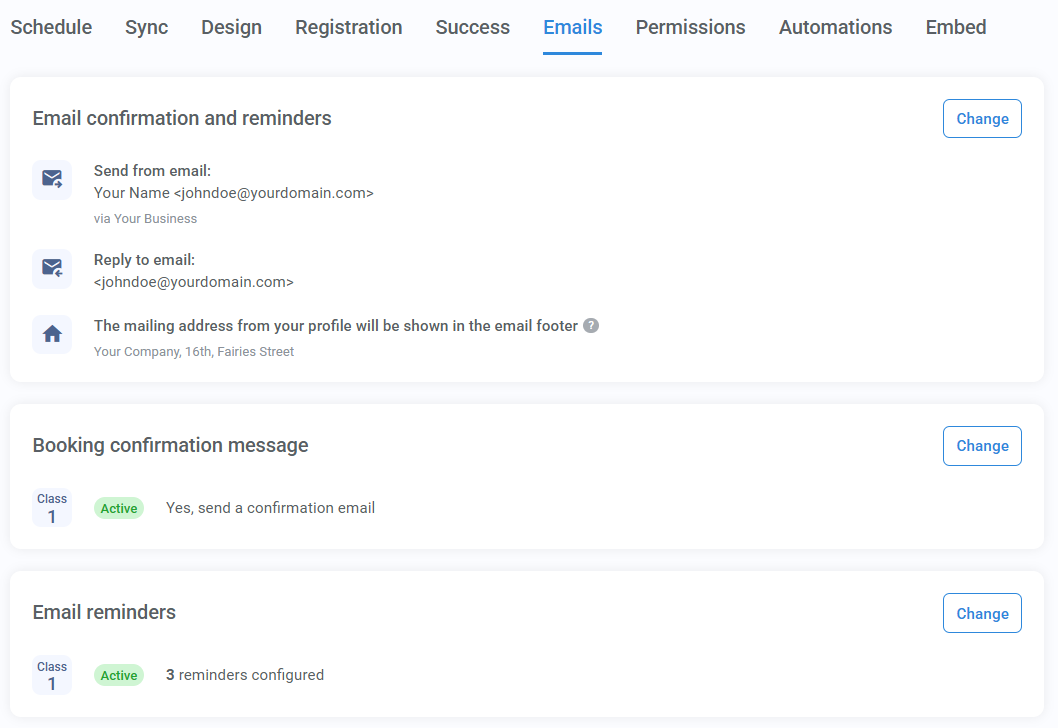
- Emails: Send booking confirmations and reminders
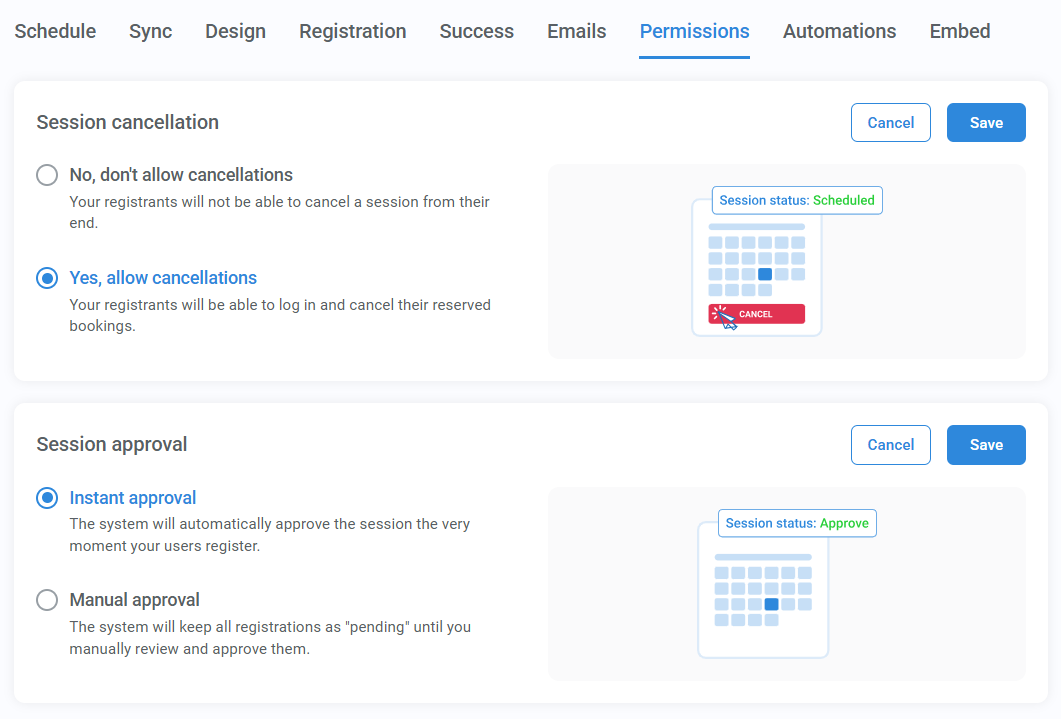
- Permissions: Control approvals and cancellations
- Automations: Trigger follow-up actions
- Embed: Place the calendar on external pages
You can configure these settings now or come back to them later.
Step 4: Publish your calendar
When you’re ready:
- Review the calendar name and URL.
- Click Publish to make the calendar available.

You can unpublish the calendar at any time if you want to stop taking bookings.