
Learn how to set booking availability in Kartra calendars based on the calendar model you choose.
After choosing a calendar model and creating your calendar, the next step is setting up availability. If you haven’t created a calendar yet, learn how to create a calendar in Kartra.
Availability determines when sessions can be booked, how often they repeat, and which time slots are shown to registrants.
Pro tips
- If multiple coaches or trainers offer the same service but work different days or times, create a separate class for each one and set availability individually.
- Avoid back-to-back bookings by spacing out your start times to allow for breaks or preparation.
Availability basics
Availability options vary depending on the calendar model you selected. Regardless of the calendar model, availability setup typically involves deciding:
- When sessions can be booked (days and times)
- How long sessions last
- How far in advance people can book
- Which dates should be excluded
Some of these settings appear in different places depending on the model you chose.
Consultant model
The Consultant model is designed for limited 1:1 appointments where registrants choose from your available time slots.
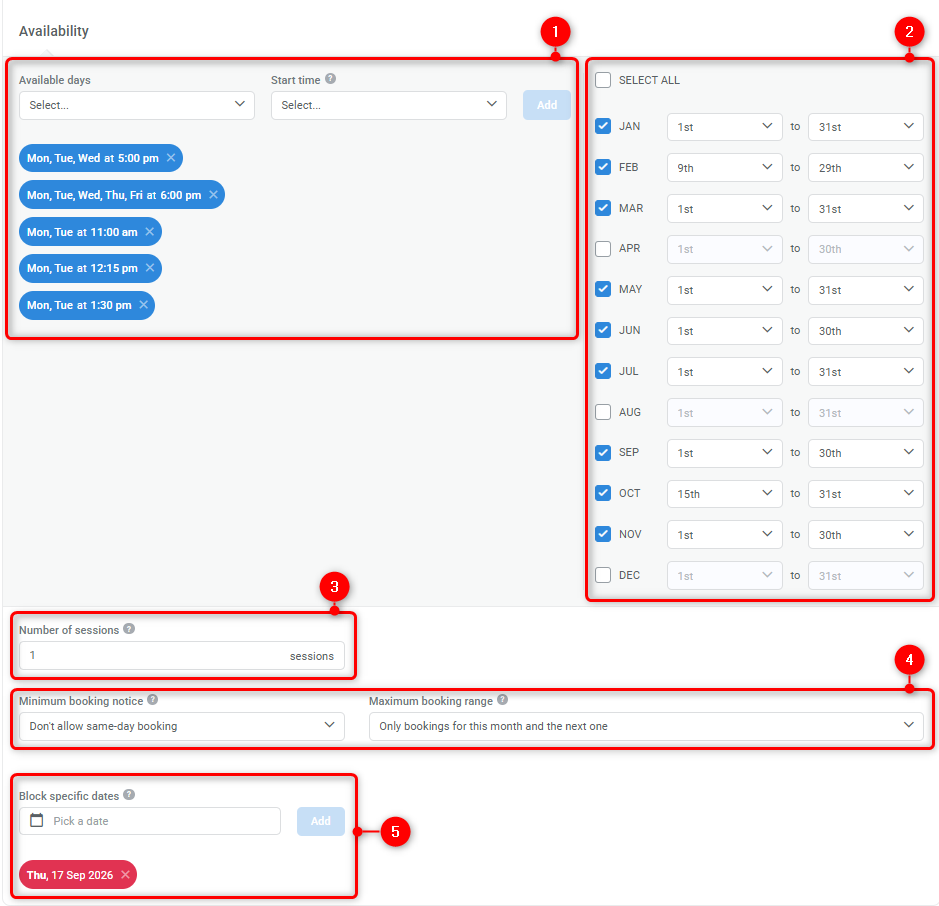
Once you define a fixed session duration for all bookings within the class, you can:
- Select which days of the week are available, and their respective starting times
- Limit availability by month
- Define a number of sessions for each registrant
- Important: If you allow multiple sessions per booking, follow-up sessions are scheduled automatically based on the original booking’s day and time. Once all sessions are completed, the registrant’s subscription ends and the time slots become available again.
- Set both a minimum and maximum booking notice
- Block specific dates (such as holidays or personal time off)
Recurrent model
The Recurrent class model is used for ongoing 1:1 sessions that repeat on a regular schedule. Sessions always occur at the same time and on the same day of the week and continue until the registrant cancels.
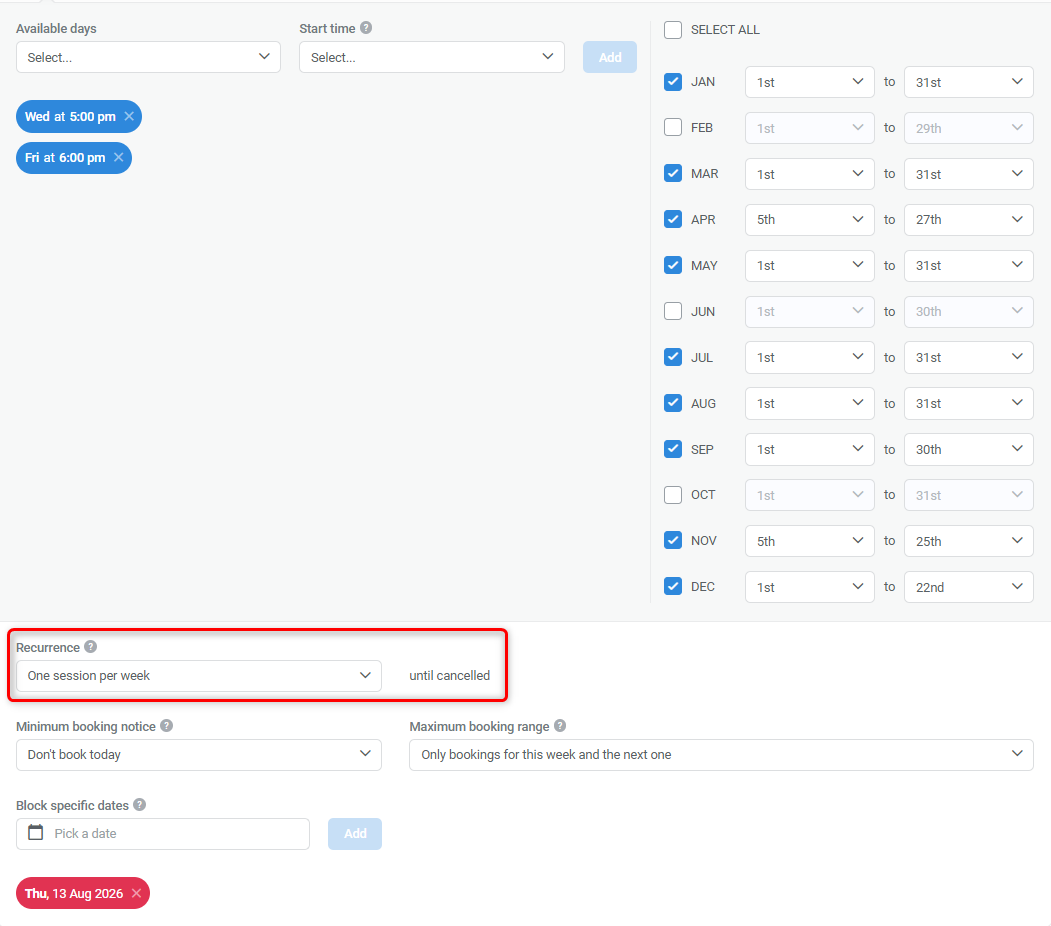
Availability setup in this model is similar to the Consultant model. However, this model also enables you to choose how often sessions repeat from the registration moment:
- Once per week
- Every second week
- Every third week
- Every fourth week
Gym model
The Gym model is designed for group sessions that run on fixed schedules. Registrants select which sessions they want to attend based on availability and remain subscribed to the class until they cancel.
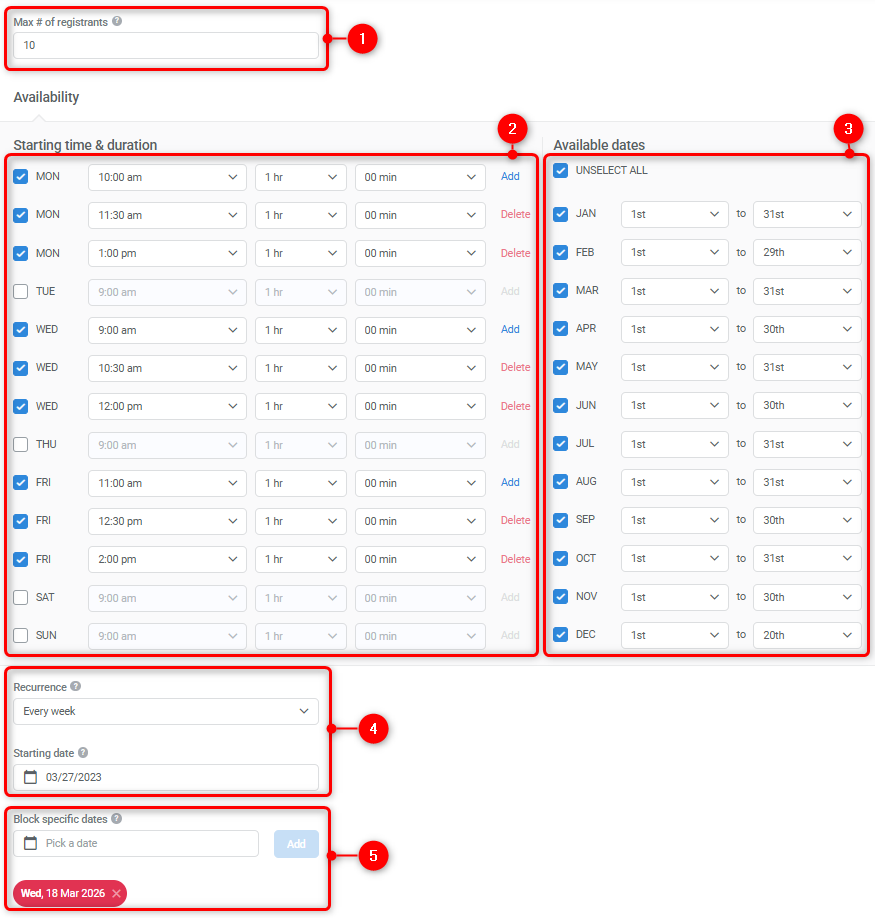
When configuring availability in a Gym class, you can:
- Set a maximum number of registrants per session
- Choose specific days and times when sessions occur
- Duration is set per session
- You can add multiple sessions per day
- Define monthly availability ranges
- Choose how often sessions repeat and when the class starts
- Important: Recurrence is calculated based on the selected starting date. For example, if sessions repeat every second week on Tuesday at 10 a.m., and the starting date is a Friday, the first available session will be the second Tuesday after that date.
- Block individual dates without changing the full schedule
Live event model
The Live event model is used for one-off events with a specific date and time.
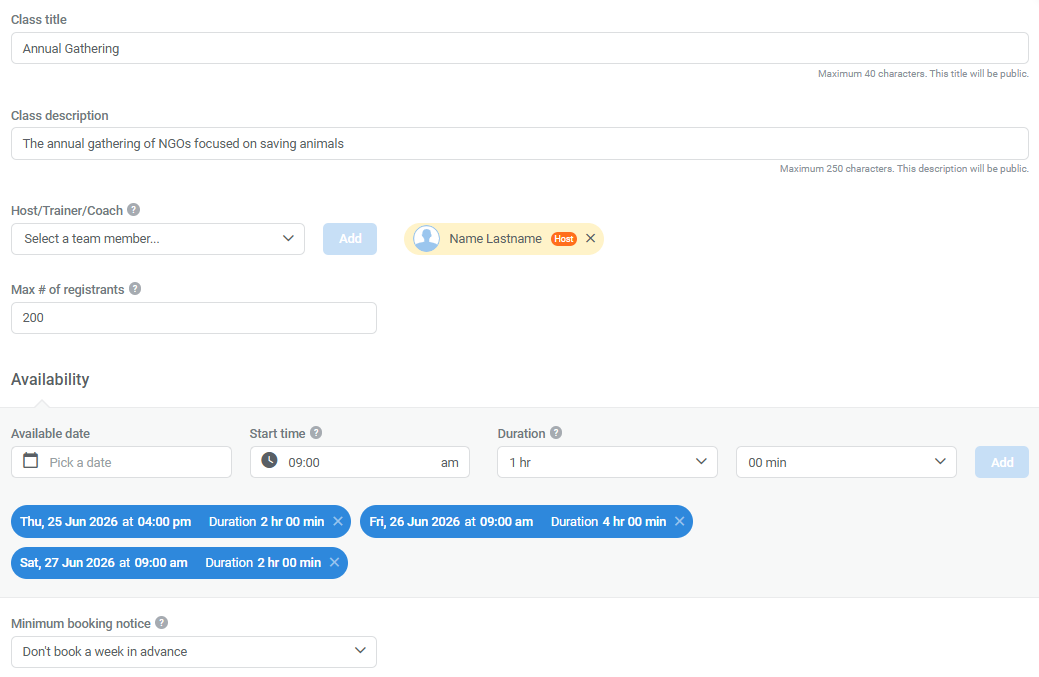
When setting availability for a live event:
- You define the event date, start time, and duration
- You can add multiple session times within the same class
All sessions within a class are considered part of the same event.
If you want to run the same event multiple times for different audiences, create separate classes instead of multiple sessions within one class.