
Learn how to create, save, and reuse email templates in Kartra so you can send consistent messages faster.
Using email templates can save time and improve the quality of your communication. Here’s how they help:
- Save time on repetitive work: Instead of writing emails from scratch, you can reuse pre-written templates and make quick edits when needed.
- Keep your messaging consistent: Templates help ensure your tone, branding, and key information stay the same across all your emails.
- Reduce mistakes: With a tested template, you're less likely to forget important details like links, instructions, or disclaimers.
- Scale your communication: As your audience grows, templates make it easier to send high-quality emails to more people without extra effort.
- Speed up team workflows (optional, if relevant): If multiple people send emails, templates make it easier for everyone to stay aligned.
Create an email template
You can create a template while building any email in Kartra, then reuse it later.
To create and save an email template:
- Go to Marketing > Emails & SMS
- Create a new email
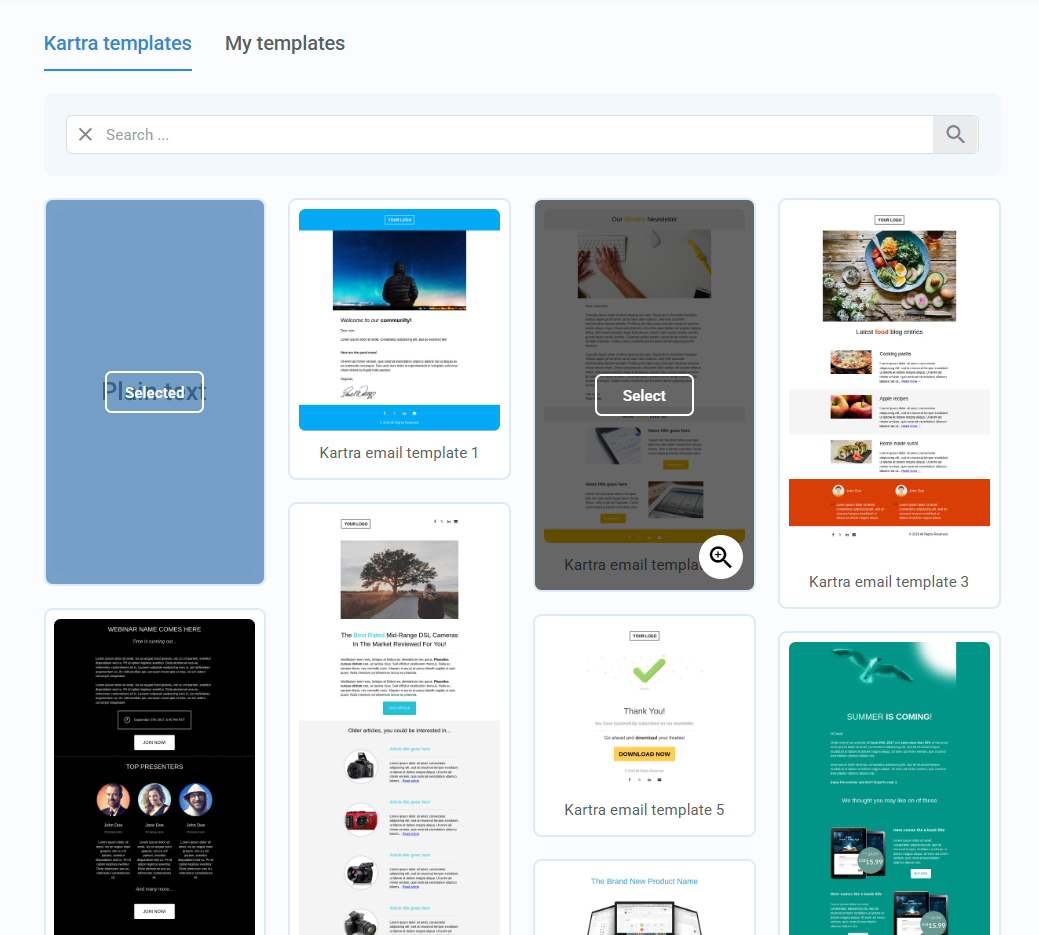
- Choose a Kartra template to start with (or start from scratch)
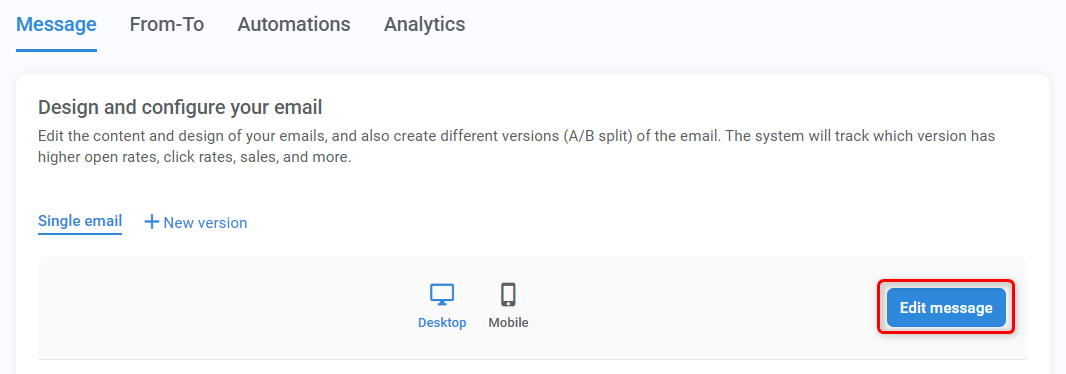
- Select Edit message to open the email builder
- Customize your email (content, layout, branding, etc.)
Once your email is ready:
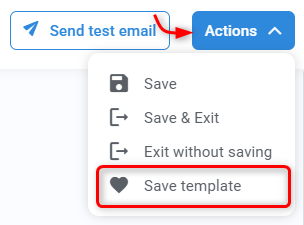
- Click on the Actions menu in the top-right corner of the email builder.
- Choose the Save as template option.
Use an email template
You can use your saved templates when creating a new email, whether it’s a broadcast or part of a sequence.
To use a template:
- Create a new email
- Open My templates in the template selection step
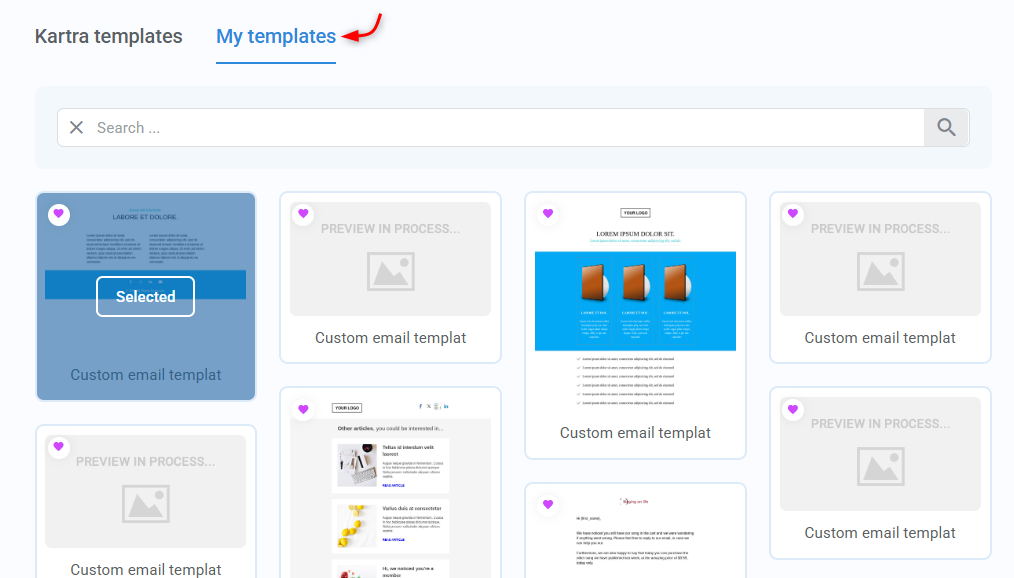
- Choose the template you want to use
You can edit the template before sending or adding it to a sequence.
Replace a template
If you want to switch templates after opening the email builder:
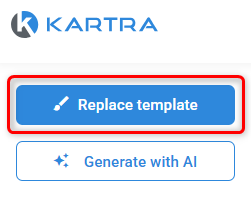
- Click Replace template in the top-left corner of the email builder
- Select a different template
Pro tips:
- Keep subject lines clear and relevant
- Use placeholders (like names) where possible
- Test your template before reusing it
- Keep formatting simple for better deliverability