
If your Stripe integration needs attention, you may be asked to reconnect it in Kartra.
You may need to reconnect Stripe if:
- Your connection was created using an older setup
- Your Stripe integration shows a red status indicator
- Payments or subscriptions are not processing as expected
Use this guide to reconnect your Stripe account and keep your payments running smoothly.
Before you begin
- Make sure you have access to your Stripe account
- If possible, log in to Stripe in a separate browser tab before starting
Reconnect your Stripe account
In Kartra:
- Go to Settings > Integrations
- Find your Stripe integration with a red status indicator
- Click the three dots > Edit
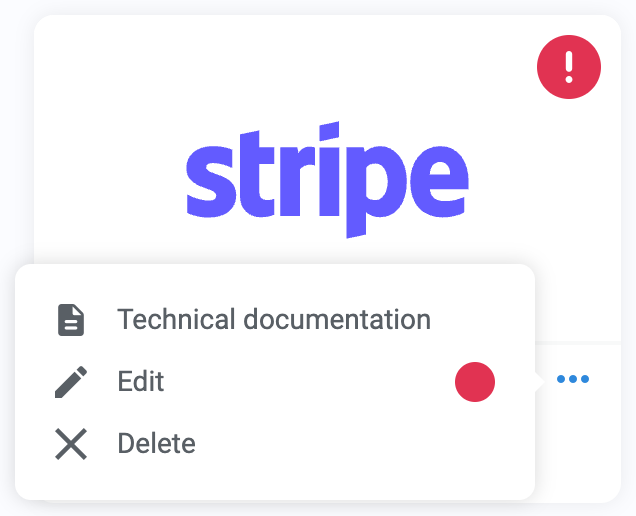
- Click Connect with Stripe
In Stripe:
- Log in (if needed)
- Select the same profile/account previously used
- Click Connect
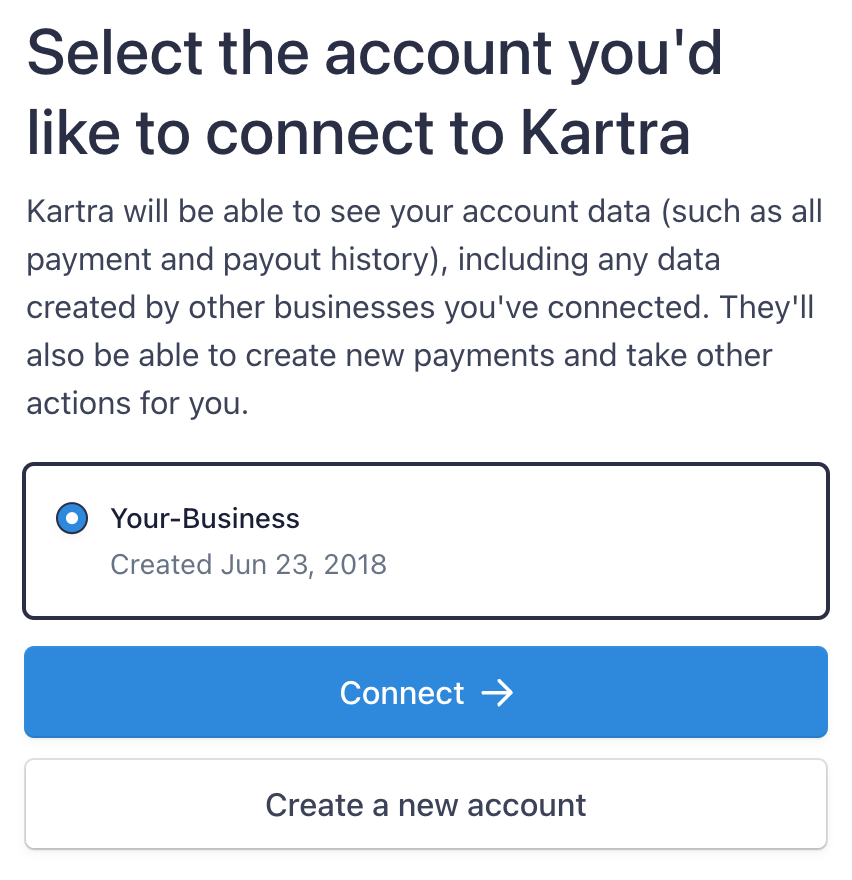
You’ll be redirected back to Kartra once the connection is complete.
Important!
You must reconnect the same Stripe account that was originally used.
This ensures:
- Subscription billing continues without interruption
- Your existing product settings remain unchanged
After reconnecting
- Active subscriptions will continue to process
- Your products will keep using the same payment setup
- No API keys or webhooks are required anymore
Troubleshoot connection issues
“Stripe account does not match”
You selected a different account than the original.
Fix:
- Compare the Publishable key in Kartra with your Stripe accounts
- Select the matching account
“Ineligible account”
Your Stripe account is already connected to another platform.
Fix:
- Disconnect it from the other platform
- Try again
“User denied request”
You exited before completing the connection.
Fix:
- Click Connect with Stripe again and complete the process
“Account already integrated”
The selected Stripe account is already connected in Kartra.
Fix:
- Choose a different account
- Or use the existing integration
Need more help?
If you're still having trouble, contact support and include:
- Screenshots of the issue
- A brief description of what you’ve tried