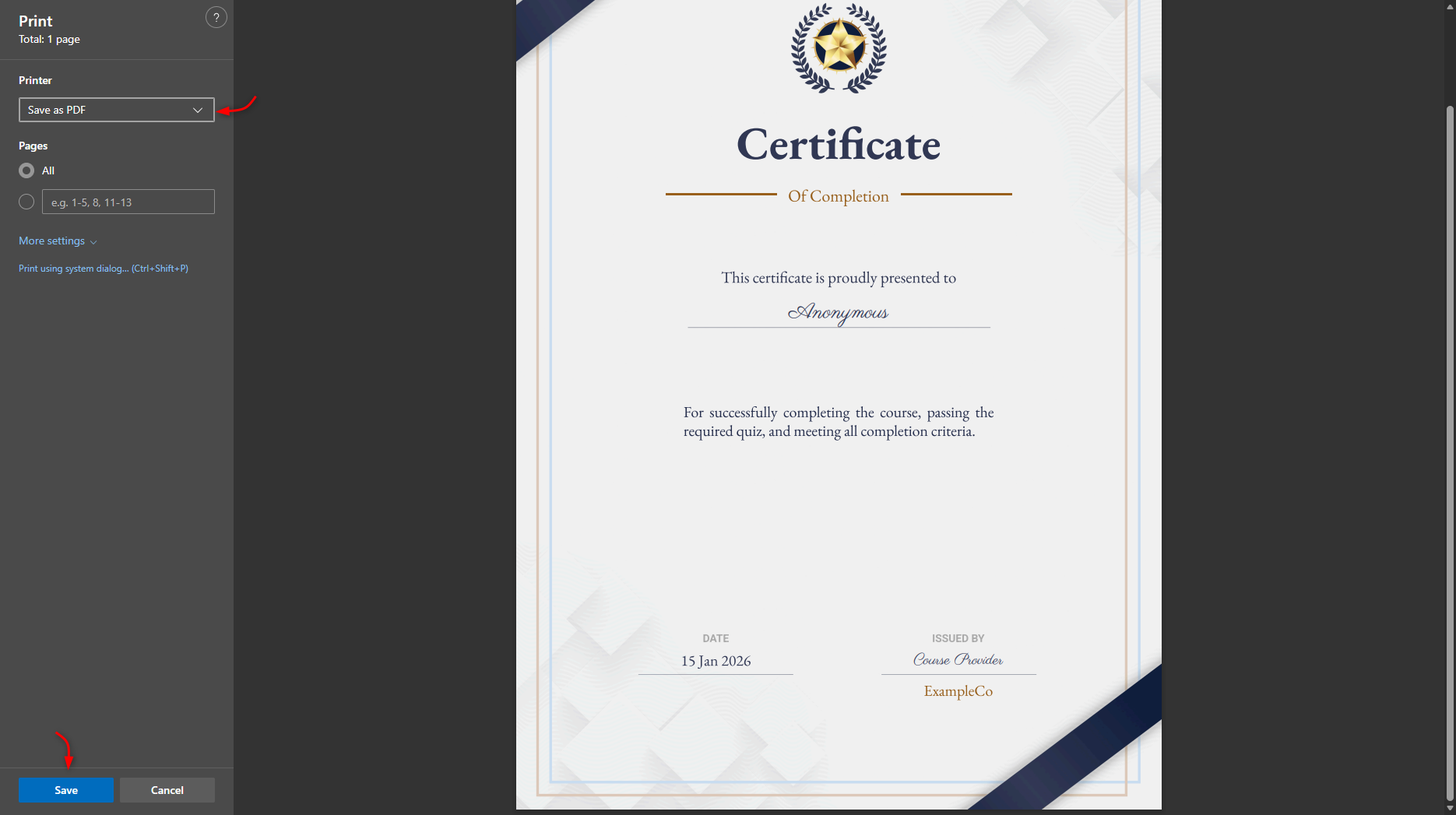
Learn how to enable and customize completion certificates in Kartra surveys and quizzes.
Certificates can be used to acknowledge participation, confirm completion, or reward users after they finish an assessment.
You might use certificates for:
- Course or training completion
- Knowledge or skill assessments
- Workshops, challenges, or events
- Internal training or onboarding programs
Enable certificates in a survey or quiz
Open your survey settings
- Create a new survey or quiz, or edit an existing one.
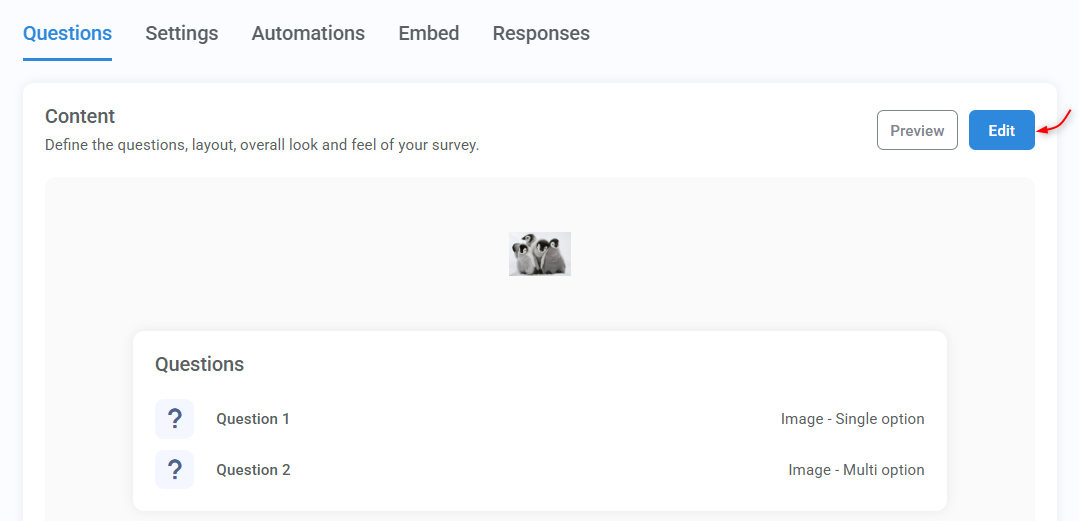
- In the Questions tab, edit the Content module to launch the survey builder.
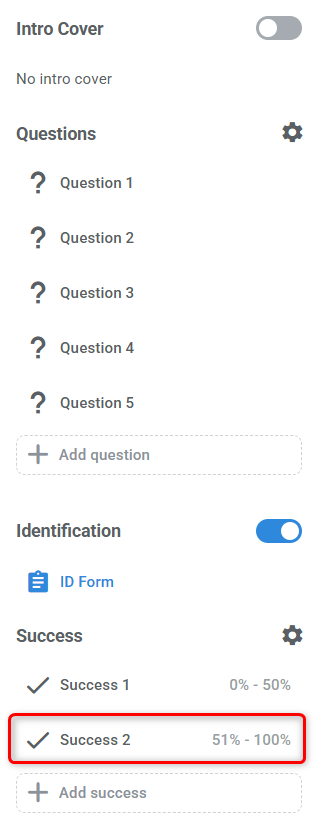
- Open the Success message for which you want the certificate to be issued.
Enable and configure the certificate
Certificates are enabled per success message.
If your survey or quiz uses multiple success messages, you must enable and configure a certificate separately for each one. This is especially useful for:
- Scored quizzes, where you may want to issue certificates only to respondents who pass
- Personality quizzes, where certificates are optional and often not needed
To do this:
- Enable certificate download using the toggle.
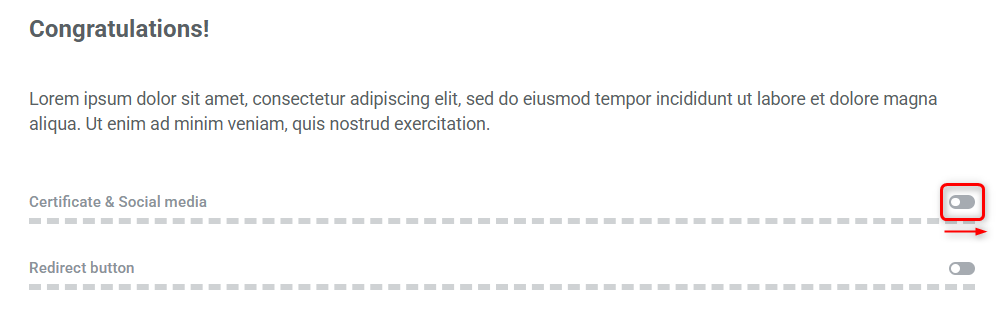
- Customize the certificate settings (see the next section).
- Apply your changes, then save the new version of your survey.
Once enabled, Kartra generates a certificate each time a respondent is directed to a success message with certificates turned on.
Pro tip
Certificates use the respondent’s identification details to populate their name.
Make sure Identification is enabled, and consider requiring both:
- First name
- Last name
This helps ensure the certificate displays the correct name, even if the respondent uses a different email address than the one already on file.
Customize certificate content
You can customize the certificate to match your brand and the purpose of your survey or quiz.
Start by selecting one of the three available templates, and choose whether to display the respondent’s score.
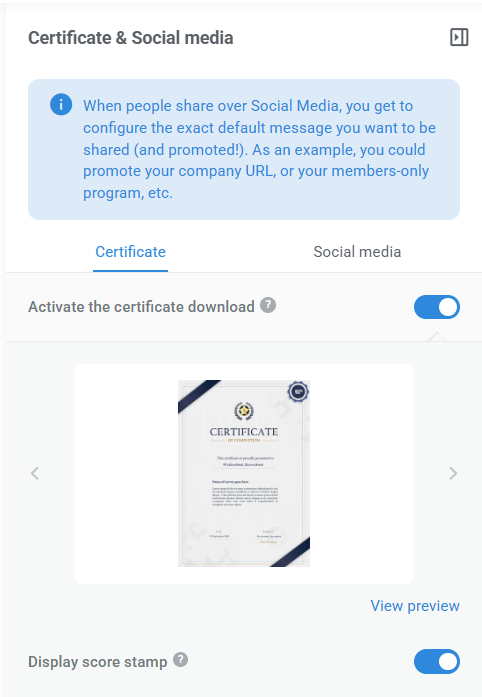
Then configure the certificate text, including:
- Title
- Subtitle
- Introduction
- Name of survey (for internal reference, not visible on the actual certificate)
- Description
- Issuer
- Company
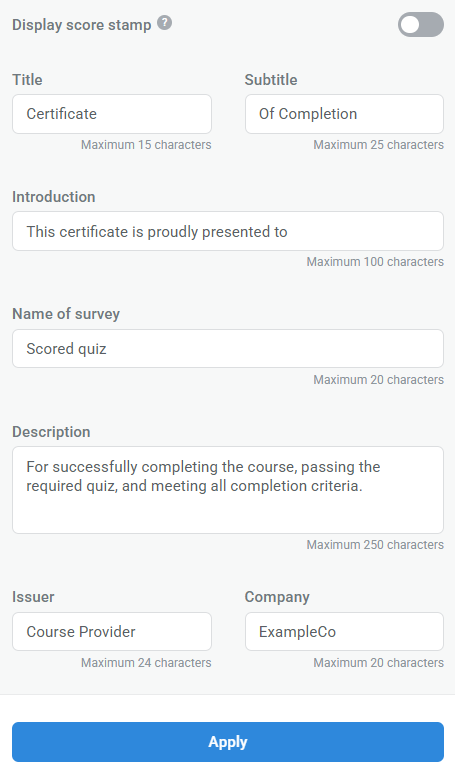
The completion date is included automatically.
Downloading the certificate
Your respondents will be able to either print the certificate or download it as PDF from the printing options screen.
- Step 1:
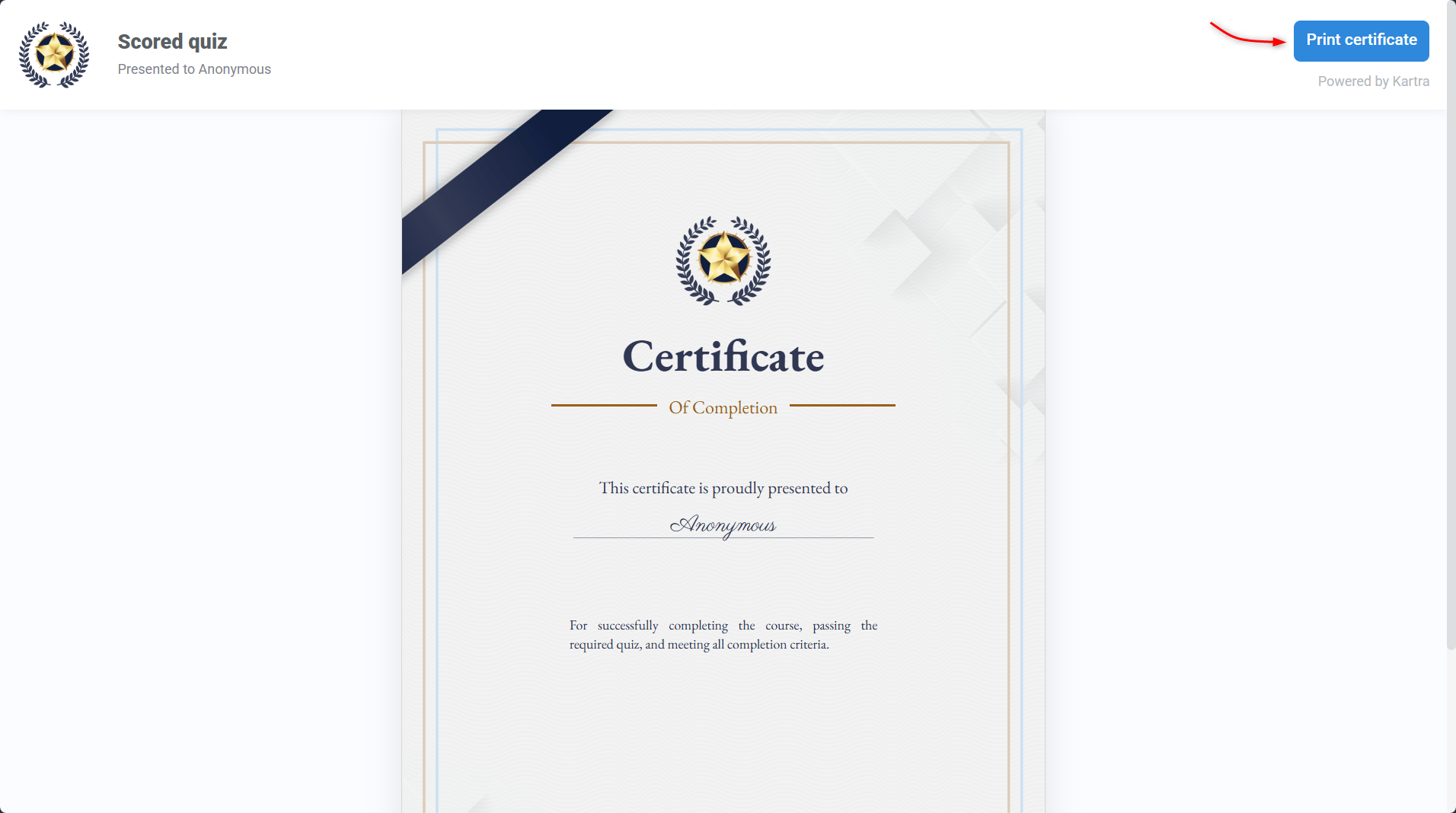
- Step 2: