Learn how to filter your contacts and apply bulk actions to manage them efficiently.
Filtering helps you find the exact group of contacts you need, whether you want to send a message, update tags, or clean your list.
Filter contacts
To filter your contacts:
- Go to Contacts > All contacts
- Expand Advanced filters

- Choose a condition and its value (e.g. Subscribed to list, Has tag, Has filled form, etc.)
- Add your filter
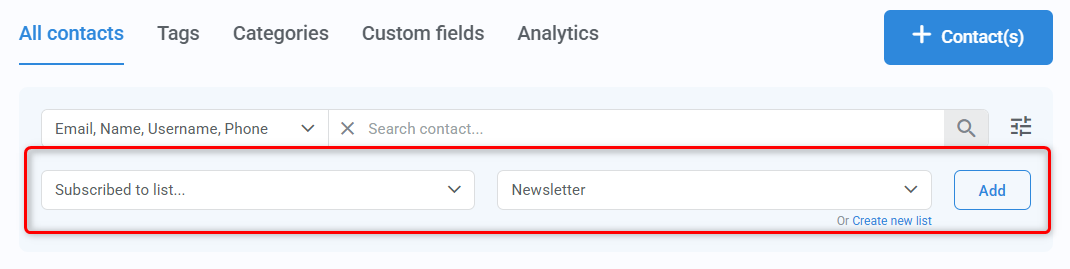
At this point, you can already work with your filtered list.
To refine your results further:
- Add more conditions as needed
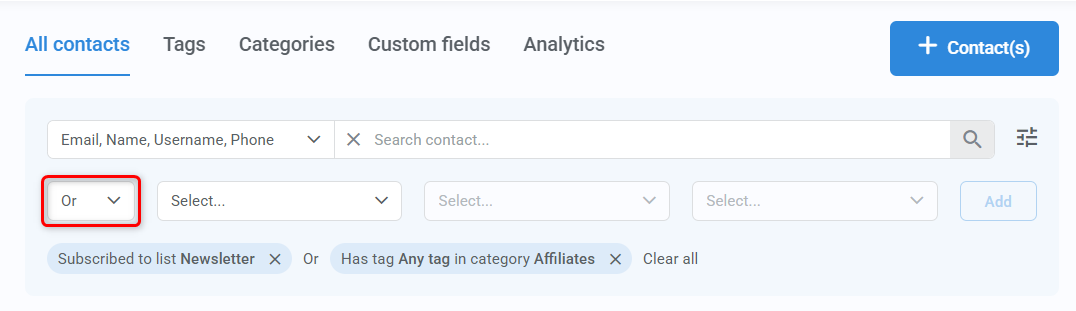
- Choose AND or OR between them
- Add the extra filters
AND, OR, and negative conditions
When using multiple conditions, the way you combine them affects your results:
- AND → contacts must meet all conditions
- OR → contacts must meet at least one condition
When using negative conditions (e.g., “Does not have tag”), the difference becomes more noticeable:
- Using AND with NOT excludes allspecified items
- Example: Does not have tag Customer AND Does not have tag VIP → excludes both groups
- Using OR with NOToften returns more contacts
- Example: Does not have tag Customer OR Does not have tag VIP → contacts will match at least one condition, some may match both
Apply bulk actions
Once you’ve filtered your contacts, you can apply actions to all of them at once.
Step 1: Select all contacts
Check the box at the top of the contacts table to select all contacts that meet your filtering conditions.
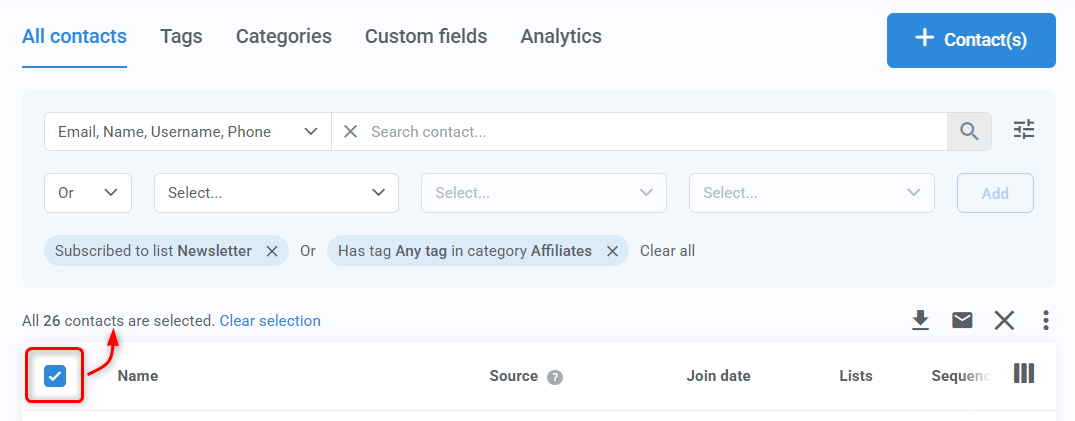
The Contacts page displays 20 contacts by default, so the initial selection will include only those 20. If your filtered results include more contacts, Kartra will prompt you to select all matching contacts.

Step 2: Choose a bulk action
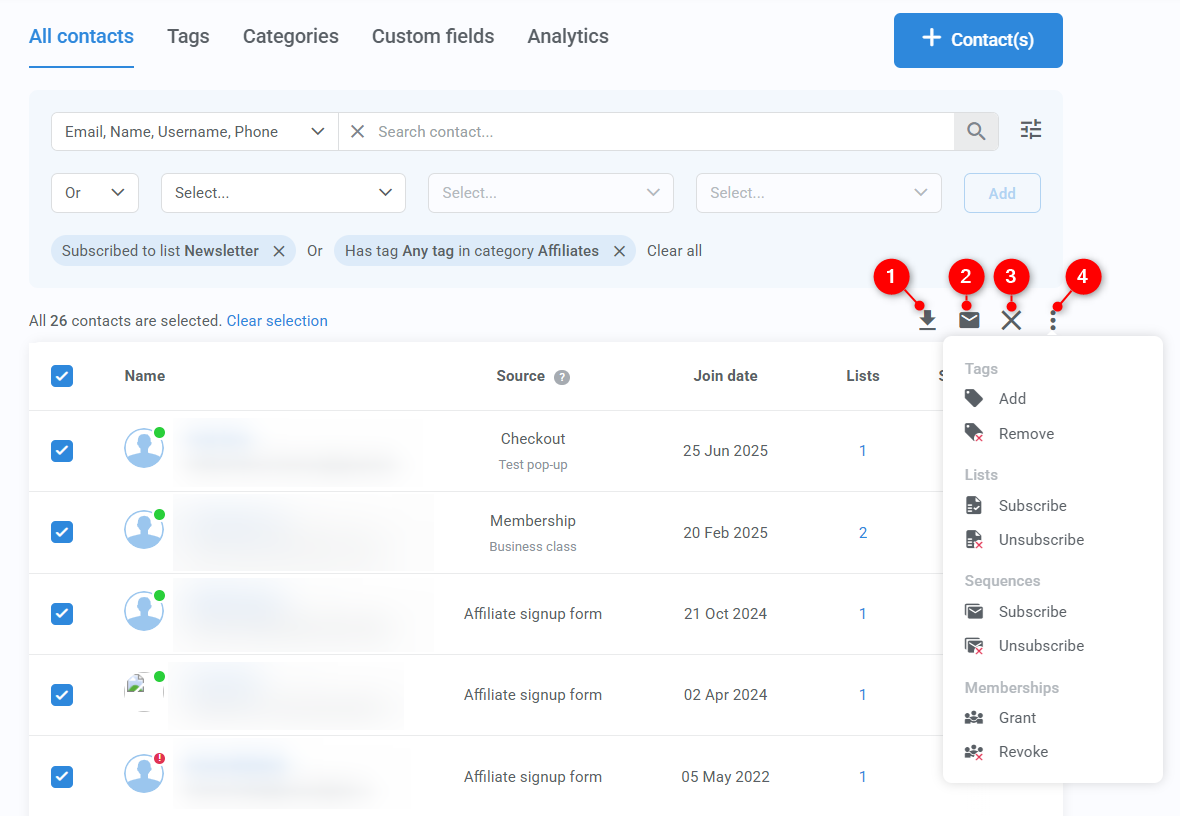
Bulk actions include:
- Export contact information
- Email contacts
- Delete contacts
- More
The other actions available let you add or remove contacts from:
- Tags
- Lists
- Sequences
- Memberships