
Learn how to schedule reminders directly from notes so you never miss an important follow-up.
Examples of how reminders can help:
- Follow up with a lead after a discovery call
- Check in with a customer before a subscription renewal
- Review a declined payment later in the week
- Contact an affiliate about a pending promotion
- Remind yourself to send a bonus or resource
Because reminders are tied directly to notes, you always have context when the notification appears.
Where you can set reminders
You can set a reminder when adding a note in the following areas:
- Contacts > All contacts → inside a contact record
- Sales > Affiliates → inside an affiliate record
- Sales > Payments > Transactions → inside order details
- Sales > Payments > Subscriptions → inside subscription details
You can also create general reminders (not linked to a contact) in News & Alerts > Reminders.
How to set a reminder
Before you begin
- Notes: Each reminder is attached to a note.
- Date and time: The reminder date and time are based on the profile timezone of the user who creates it.
- Notification avenues:
- In-app
- By email
- Or both
- Email notification: Reminder emails can be customized using the system email template. A {reminder_text} variable is available to include the note content.
Add a reminder to an existing record
- Open the relevant record (contact, affiliate, order, or subscription) and add a note.
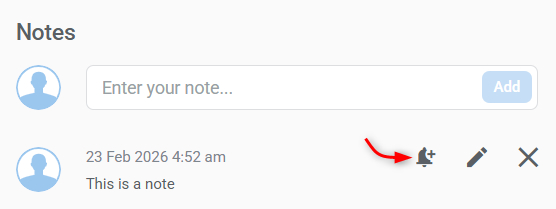
- Click the bell icon (Set reminder) inside the note.
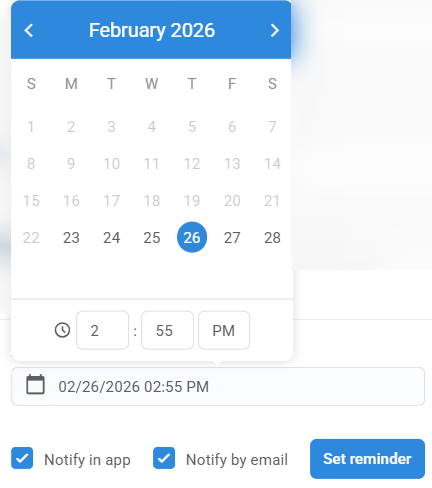
- Select the date and time for the reminder.
- Choose how you want to be notified:
- In-app
- Or both
- Click Set reminder to save.
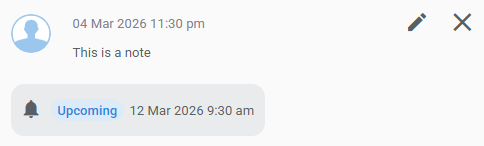
Your reminder will appear:
- Under the note it belongs to
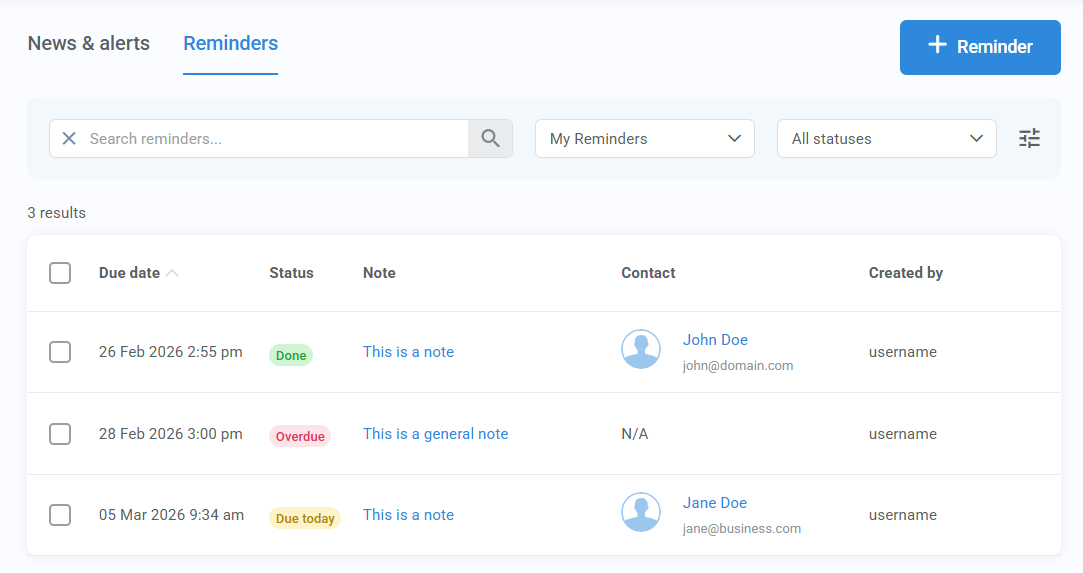
- In your Reminders dashboard.
- In News & Alerts and/or an email when it becomes due.
Add a general reminder
To set a task reminder that isn’t specific to a contact:
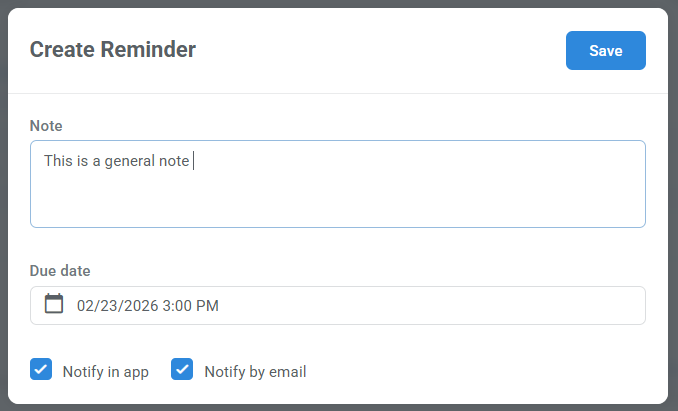
- Go to News & Alerts > Reminders and click + Reminder.
- Add a note, select the date and time, and notification preferences.
- Save.
In-app and email notifications
When a reminder becomes due:
- You’ll see it inside News & Alerts
- You may also receive an email notification (if enabled)
Reminder notification emails use a customizable system template. The {reminder_text} variable automatically inserts the content of the note and the scheduled reminder time.
Managing reminders
View and manage reminders
All reminders can be managed from News & Alerts > Reminders. From this dashboard, you can:
- View reminders by status
- Edit existing reminders
- Delete reminders
- Mark reminders as done
- Use bulk actions (mark as done or delete)
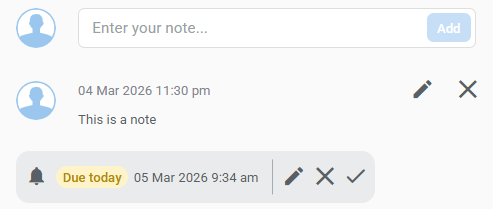
You can also edit, delete, or mark as done any reminder individually from the note it belongs to. Hover over the reminder to see options.
Reminder statuses
Reminders are automatically organized into the following categories:
- Overdue: The scheduled date and time have passed, and the reminder is not marked as done.
- Due today: The reminder is scheduled for today (based on your local timezone) and is not marked as done.
- Upcoming: The scheduled date is in the future (not today) and not marked as done.
- Done: You manually marked the reminder as completed. Completed reminders remain visible for 10 days before being archived.
Team member visibility (important)
Reminder visibility may depend on your team permissions.
By default, reminders are shown for the currently logged-in user. Depending on your account permissions, you may have the option to view reminders for additional team members.
If you’re unsure what you can see or manage, check with the account owner.