
Share this guide with your members if they reach out with difficulties logging in or updating their account details.
Keeping your account information up to date helps ensure uninterrupted access to your membership and a smoother experience overall.
Before you begin
- You must be able to log into your membership to update your profile details.
- If you’ve forgotten your password, follow the reset steps below instead.
Update your profile and login details
If you can log into your membership, you can update your personal information at any time.
To update your details:
- Log into your membership
- Click the Profile (person) icon
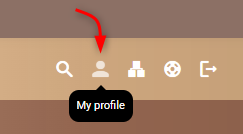
- Edit any of the following details as needed:
- First name or last name
- Email address
- Password
- Phone number
- Address
- Save your changes
Change your password
If you want to update your password while logged in:
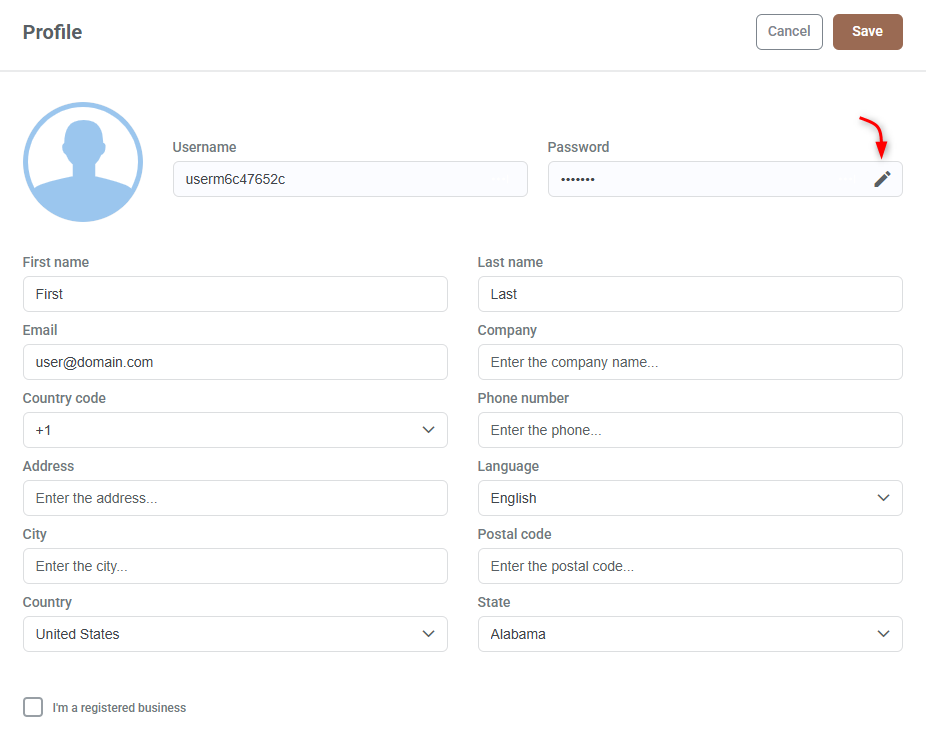
- In your Profile, locate the password field
- Click the Edit button
- Enter your current password
- Enter your new password
- Confirm your new password
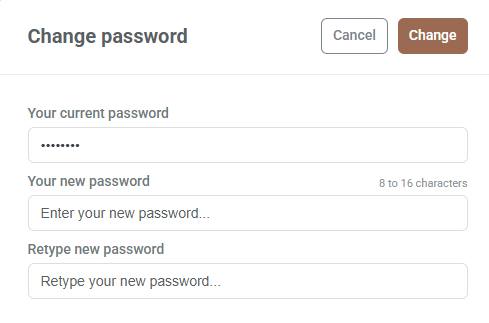
- Click Change to save
Your new password will be required the next time you log in.
Reset your password if you can’t log in
If you’ve forgotten your password:
- On the login page, click Forgot password
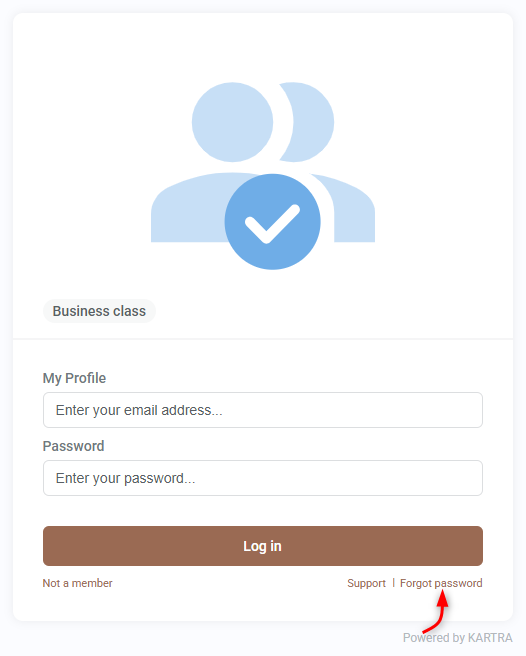
- Enter the email address linked to your account
- Check your inbox for a password reset email
- Use the provided password to log in
Once logged in, it’s recommended to update your password to something you’ll remember using the steps above.
If you don’t receive the reset email:
- Make sure you input the correct email address.
- Check your spam, updates, or promotions folder.
- Mark the sender’s email address as a safe sender in your email provider.
- If you’re not sure what email address the sender uses, reply to any previous email you’ve received from them to request confirmation.