
Learn how to display a Kartra calendar booking form on a custom Kartra page.
When you create a calendar in Kartra, a default registration page is generated automatically. While it works out of the box, customization options are limited. Adding your calendar to a Kartra page lets you design a more branded and flexible booking experience.
Before you begin
- Make sure your calendar is already created in Events > Calendars
- Your calendar must be fully configured (availability, event details, etc.)
- The calendar will appear as a booking form once added to your page
Learn how to create a Kartra calendar.
Add a calendar to your page
Follow these steps to embed your calendar into a Kartra page:
- Go to Pages and open an existing page or create a new one
- Expand the Components option, and select Calendar in the Assets section
- Drag and drop the Calendar component onto your page

Select your calendar
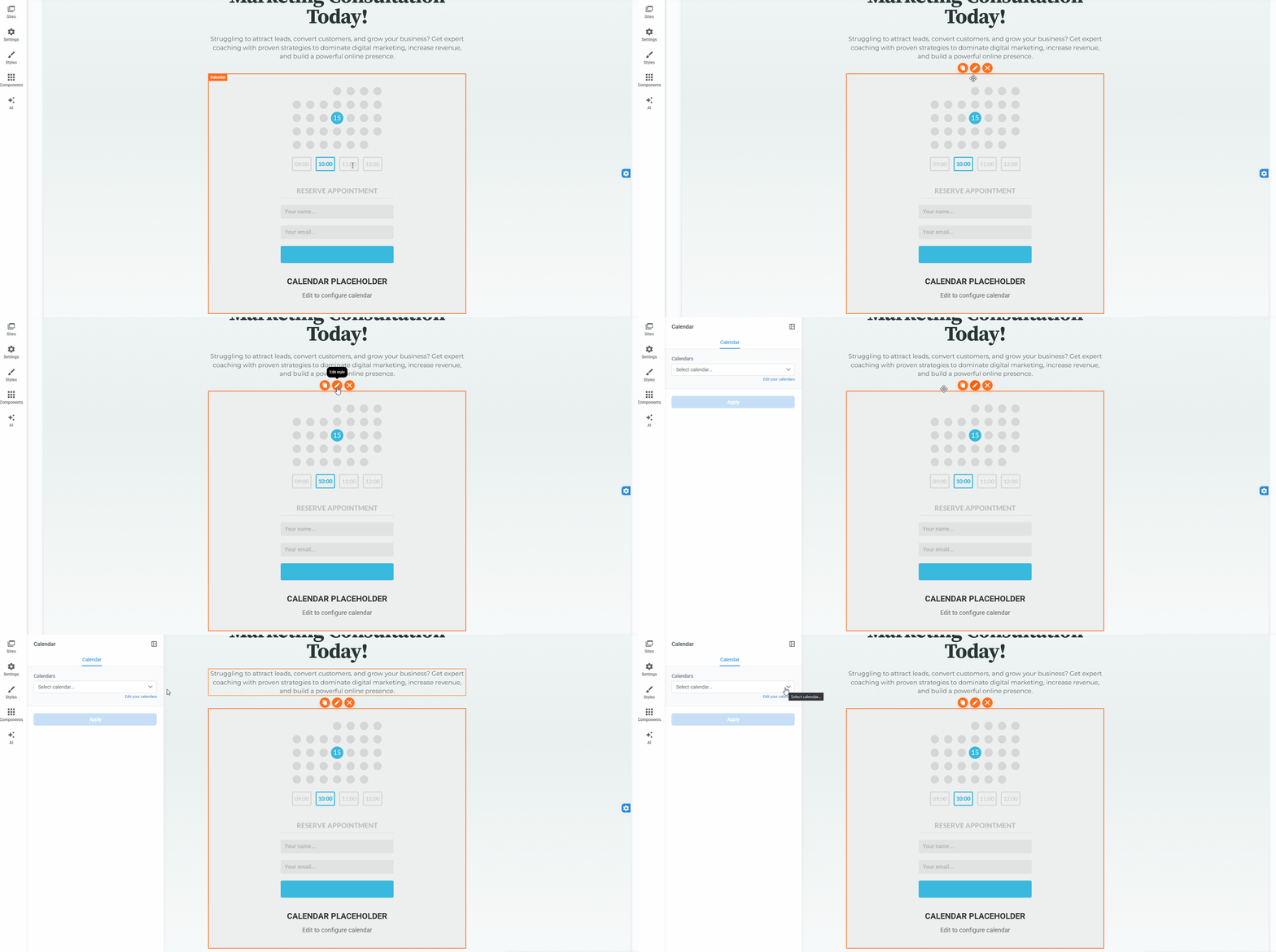
Once the calendar component is placed on the page:
- Edit the calendar placeholder
- In the settings panel, choose the calendar you want to display and Apply
Publish and test
After setting up your calendar:
- Publish your page
- Open the live page to confirm the calendar loads correctly
- Test the booking flow to ensure everything works as expected