
Learn how to access and download responses from your surveys and quizzes in Kartra.
Once your survey or quiz is live and collecting responses, you can review individual answers or export the data for deeper analysis.
Access responses
To review responses for a survey or quiz:
- Go to Contacts > Surveys
- Open the configuration wizard for the survey or quiz you want to review
- Go to the Responses tab
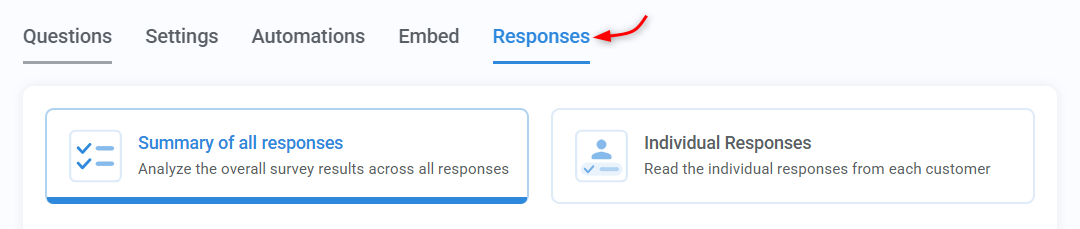
Summary vs. individual responses
Summary of all responses
- Shows all questions in the survey along with how many responses each one received
- Helps you identify if respondents are skipping questions (especially if they’re not required)
- Displays percentages for each answer, so you can quickly see how people are responding
This is useful for spotting trends, identifying confusing questions, or adjusting difficulty in quizzes.
Individual responses
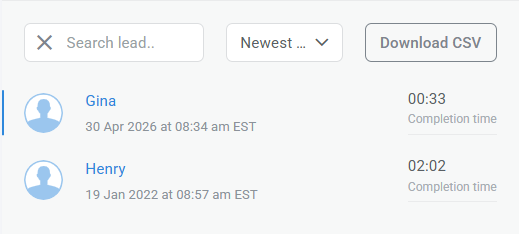
- Lets you search for specific contacts and review their answers.
- Allows you to download responses as CSV files.
Important:
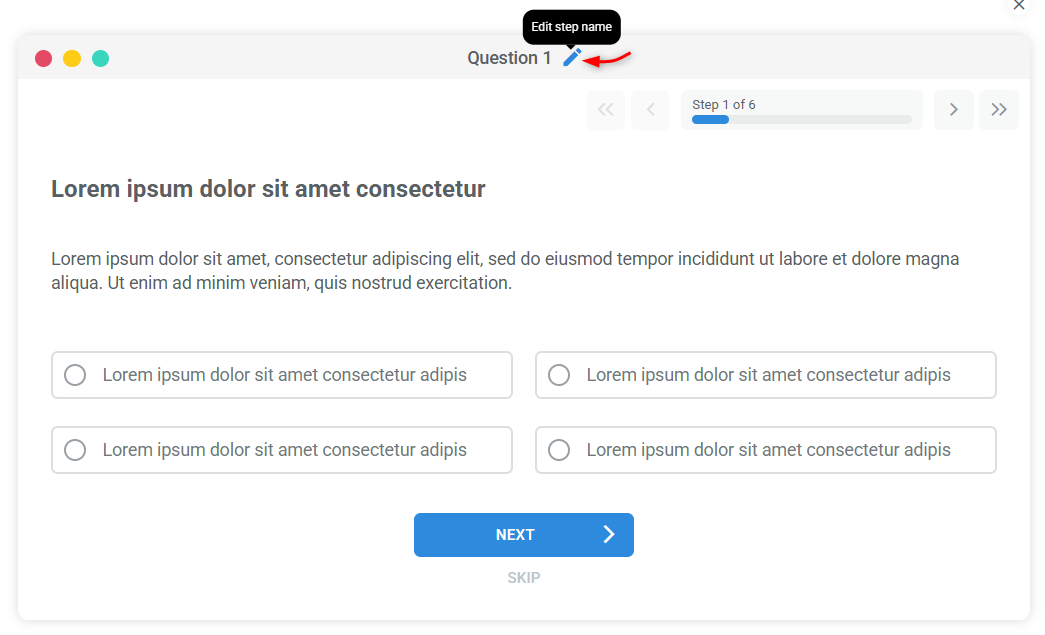
The questions shown in the Responses tab are pulled from the step names you set for each question in the survey builder.
Download responses
In Individual Responses:
- Enter a responder’s name or email address in the search field (optional)
- Click Download CSV
Keep in mind:
- Downloading responses generates two separate files (explained below)
- If you don’t filter by a specific contact, the export will include all respondents.
- If your survey doesn’t have Identification enabled, results will be stored as anonymous, and you won’t be able to filter by contact
Why two files?
When you download responses, Kartra generates two CSV files:
- Lead data file: Provides you a high-level overview of each respondent.
- First name
- Last name
- Username
- Type
- Score
- Date
- Duration
- Responses data file: Shows detailed answers for each question.
- First name
- Last name
- Username
- Question ID
- Question
- Response
- Question correct?