
Kartra can automatically connect domains you already own and set up email authentication without requiring any manual DNS edits.
If you bought your domain from a supported provider, it can be connected automatically to your Kartra account—no setup required. This is the fastest and simplest way to integrate your domain.
Automatic domain connection will create the DNS records required by your domain provider, including those needed for page URLs and DKIM email authentication.
Automatic setup will replace the existing DNS configuration for the domain or subdomain you are connecting.
If your domain currently points to another website (such as WordPress, Wix, Squarespace, Shopify, or similar), connecting it to Kartra will:
- Disconnect the domain from your other website
- Stop visitors from reaching your old site
- Overwrite the DNS records routing traffic to that platform
If your domain is already connected to a live website:
- If you intend to keep that website:
Create a subdomain to use with Kartra instead (for example, pages.yourdomain.com). This avoids downtime and keeps your existing site online.
- If you no longer need your old website:
You may safely proceed with automatic setup. Kartra will replace the previous configuration.
How to connect your domain automatically
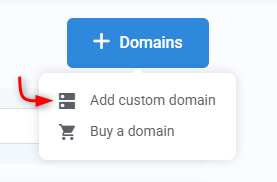
- Go to Settings > Domains, click + Domain, and choose Add custom domain.
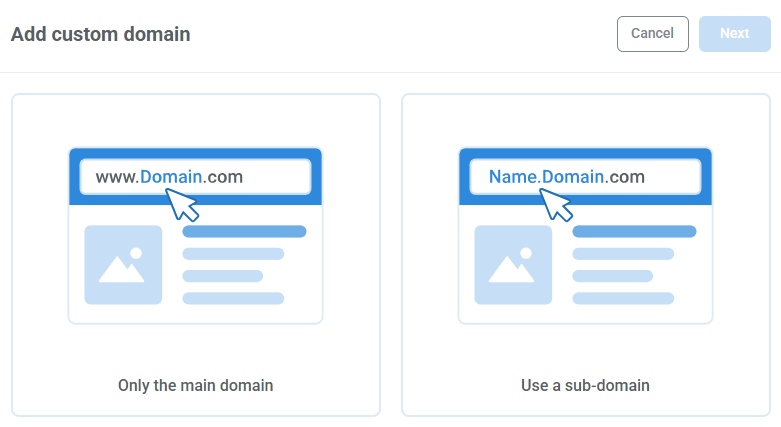
- Select whether you are connecting a root domain (e.g., www.yourdomain.com) or a subdomain (e.g., pages.yourdomain.com).
- Enter your domain name.
- Choose your index (home) page and 404 page.
- (Optional) Upload a favicon for your domain. You can also come back and do this later.
- Click Next.
Kartra will check whether your provider supports automatic setup. If supported, the Automatic configuration option becomes available. If automatic configuration is not available, the option will be grayed out.
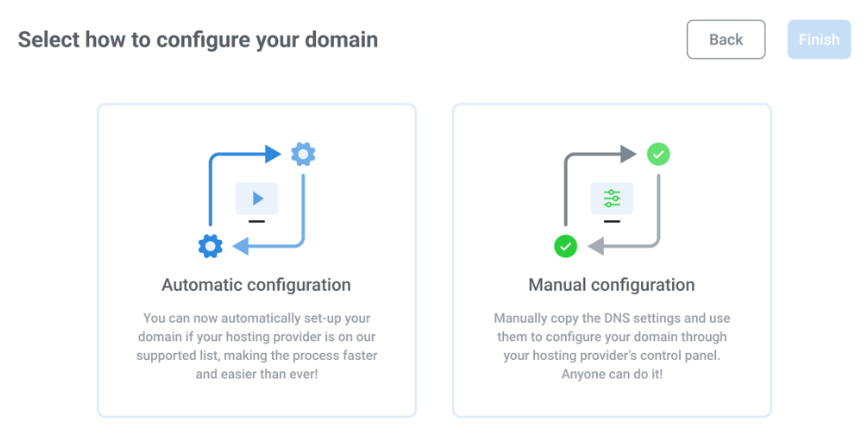
Click Finish to start the automatic connection.
After automatic setup begins
Once the process starts:
- Your domain appears in Settings > Domains
- The status shows as Processing while the connection is in progress
- Processing times vary by provider, but most domains connect within a few minutes to a few hours
- Kartra automatically issues an SSL certificate, ensuring your domain loads securely (HTTPS)
When the status changes to Connected, your domain is ready to use in Kartra.
If automatic setup is not available
If your provider does not support automatic configuration, the option will be greyed out. You can still connect your domain using manual DNS setup.
Learn how to manually connect your domain.