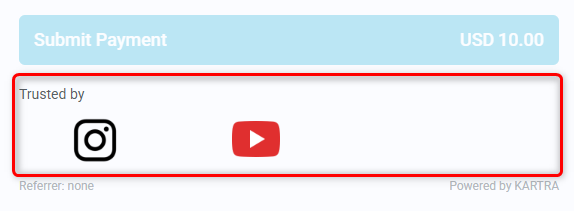
Add reassuring messages and trust elements directly to your Checkouts.
Checkout Custom messages can help you:
- Explain how customer information is used
- Set expectations for what happens after payment
- Reinforce your credibility with trusted client or brand logos
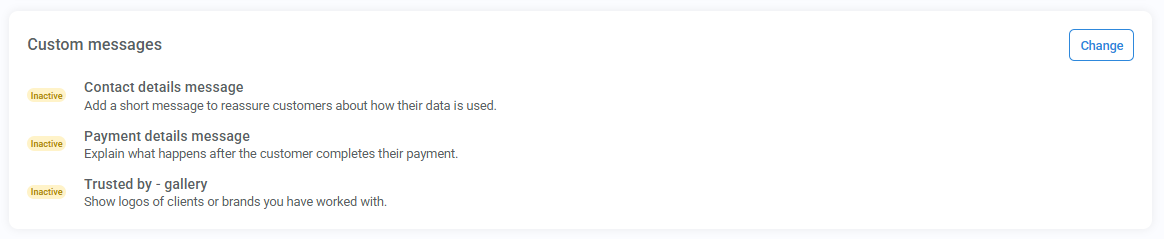
You can customize:
- A contact details message
- A payment details message
- A Trusted by gallery with brand logos
Pro tip
The most effective checkout messages are:
- Short
- Clear
- Relevant to the customer’s concerns
Focus on reassurance and clarity rather than promotional language.
Add checkout custom messages
- Edit the checkout you want to customize
- In the Design tab, edit the Custom messages module
- Configure the elements you want to display (toggle to enable)
- Save your changes
Contact details message
Use this message to reassure customers about how their information will be used or stored.
You can:
- Add a custom message
- Add an icon to highlight the message
The message supports up to 200 characters.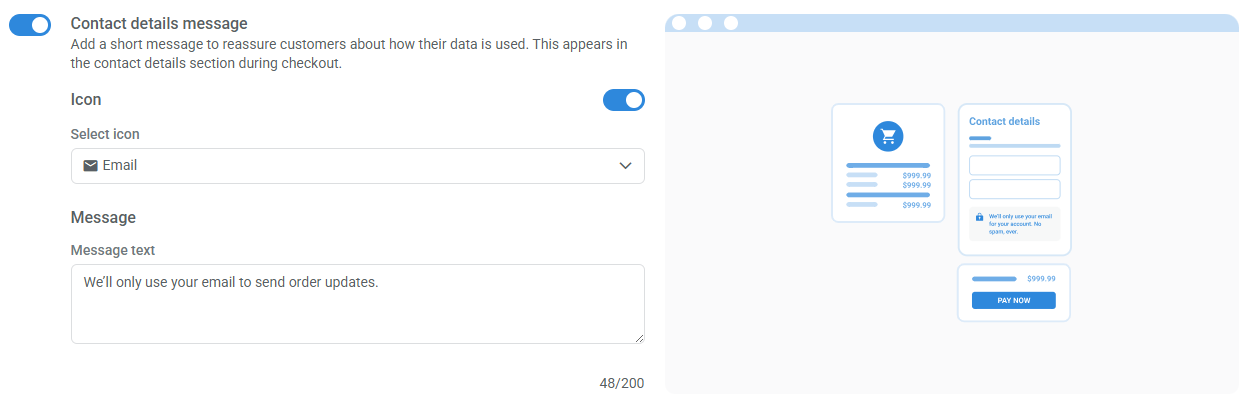
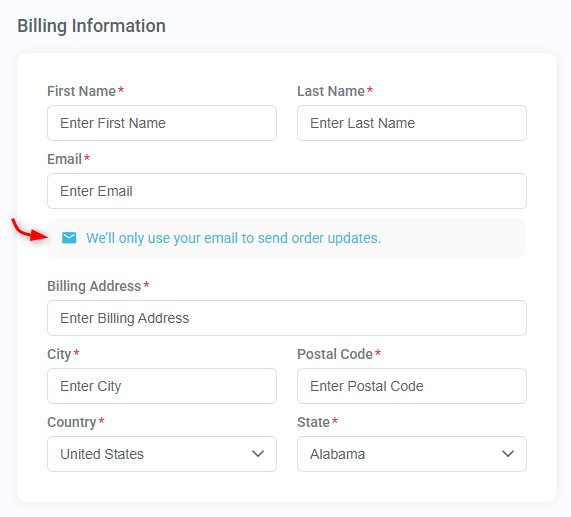
The contact details message appears in the section where customers enter their contact information.
Payment details message
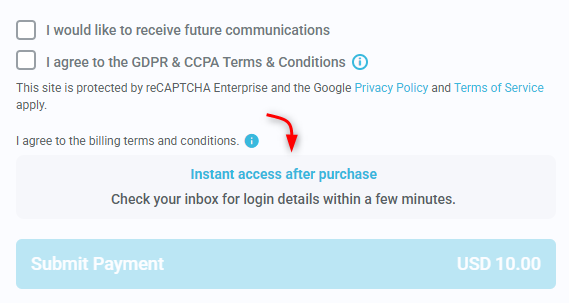
Use this section to explain what customers should expect after completing their purchase.
This can help reduce uncertainty before payment by clarifying:
- When access will be delivered
- What happens next
- Where confirmation details will be sent
You can add:
- A title (up to 120 characters)
- A message (up to 200 characters)
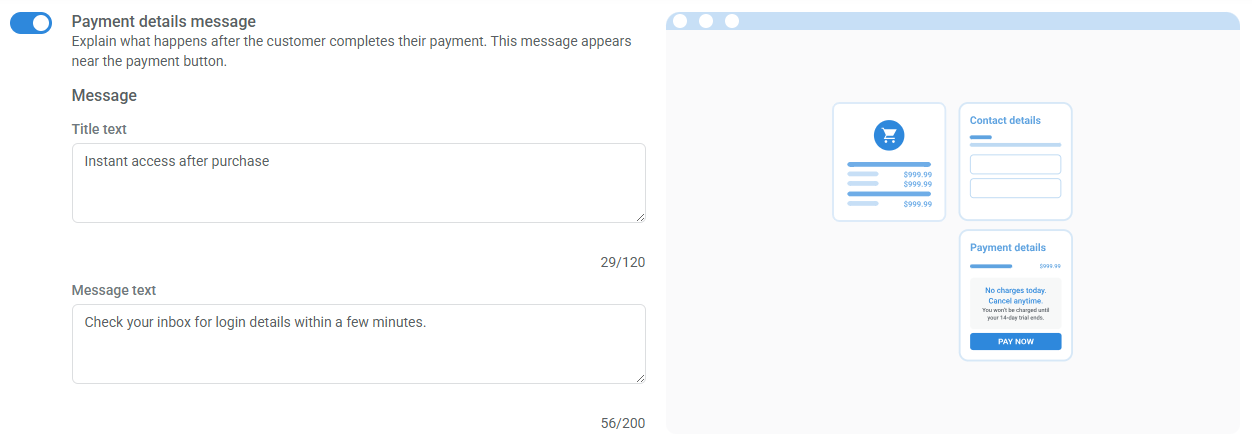
The payment details message appears near the payment button during checkout.
Trusted by - gallery
This section can help reinforce credibility and reassure first-time buyers during checkout.
The Trusted by - gallery allows you to display logos of brands, companies, or clients you’ve worked with.
For each logo, you can add:
- Brand name
- Link
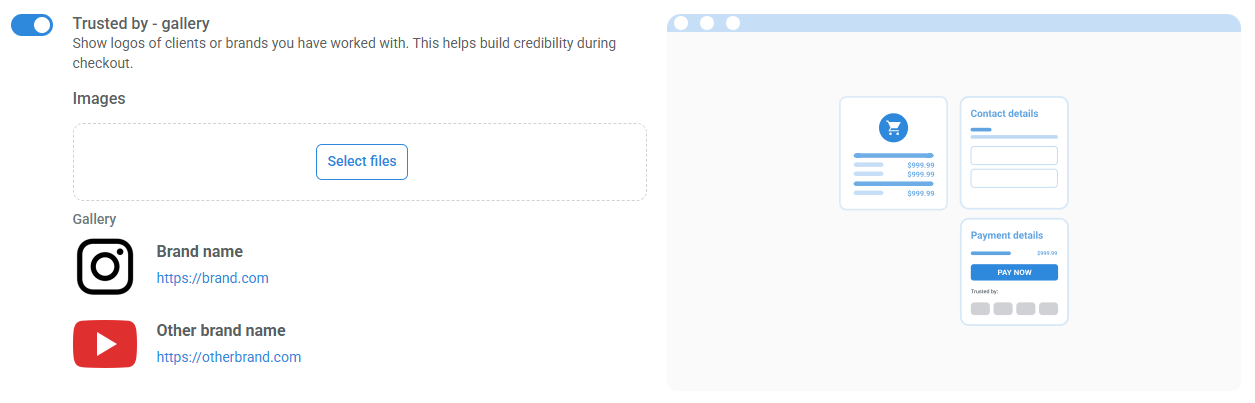
The gallery appears at the bottom of your checkout form.